> ## Documentation Index
> Fetch the complete documentation index at: https://docs.ravan.ai/llms.txt
> Use this file to discover all available pages before exploring further.
# Appointments
> View and manage calendar bookings generated by your voice AI agents. Currently visualizing GoHighLevel integrations.
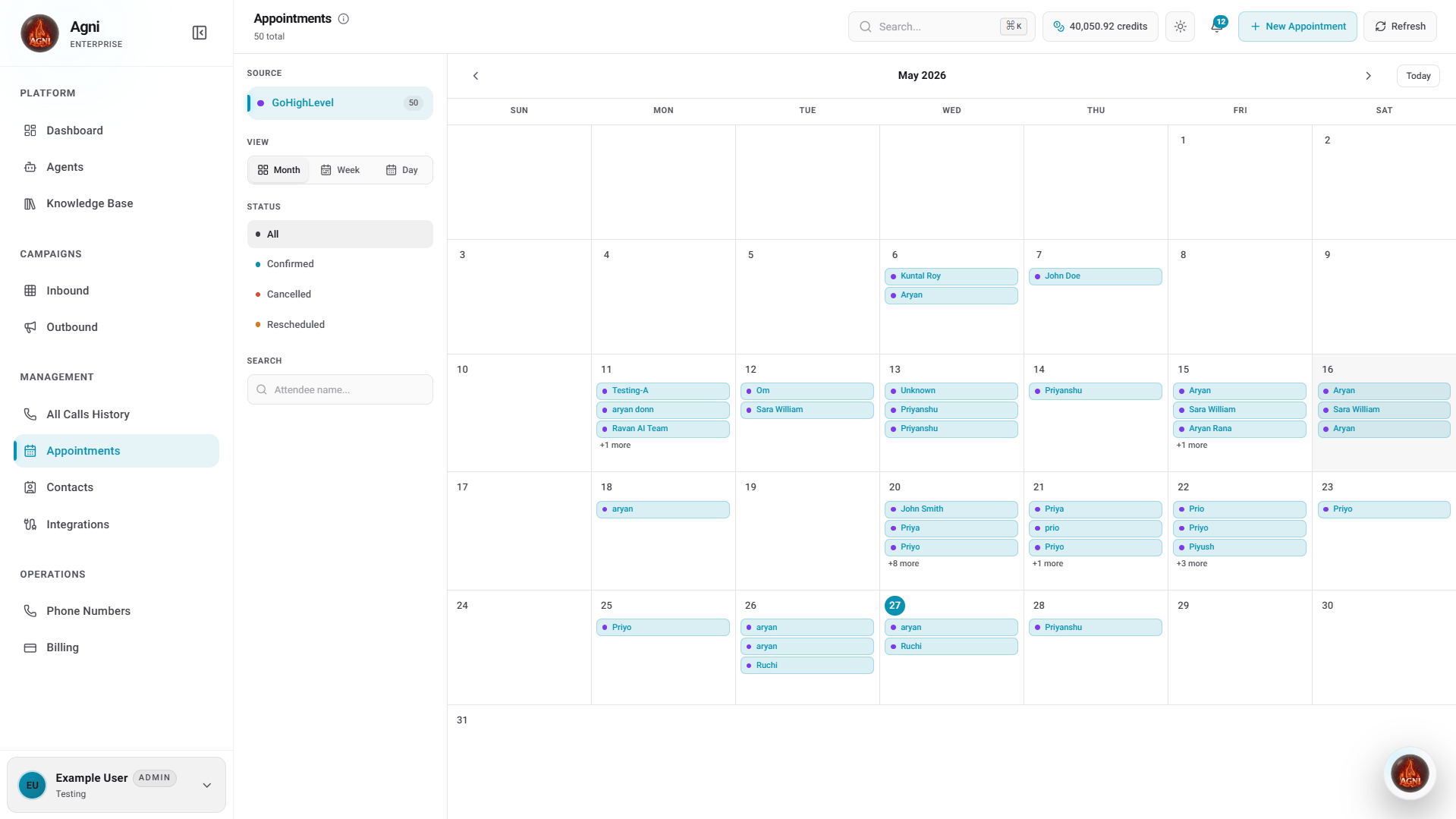
The **Appointments** page acts as a centralized calendar for your Agni workspace. When your AI agents successfully negotiate a time and book a meeting with a caller, the resulting calendar events are automatically synced and displayed here.
 ***
## How Appointment Booking Works
Agni agents can book, reschedule, and cancel appointments autonomously during live calls. Here's how the flow works end-to-end:
Link your **GoHighLevel** or **Cal.com** account in [Workspace Settings](/guides/settings). This gives Agni access to your calendars and availability.
In the [Agent Builder](/guides/agents), open the **Calendars** panel and select which calendar the agent should use for booking.
During a live call, the agent checks your real-time availability, suggests open slots, and confirms with the caller. It handles conflicts, timezone differences, and rescheduling automatically.
Once confirmed, the appointment appears in your connected platform. **GoHighLevel** bookings will also instantly populate your visual Agni Appointments dashboard.
***
## Integration Sources
While your agents can book meetings using both GoHighLevel and Cal.com, the visual calendar inside the Agni dashboard currently displays data synced from **GoHighLevel**.
View, filter, and manage appointments synced from your connected GHL sub-accounts directly within the Agni dashboard.
Agents can successfully book meetings via Cal.com. Manage these specific bookings directly inside your Cal.com account.
**Connection Required:** If you see a "Failed to load appointments" error, you must first authenticate and connect your GHL account in your [Workspace Settings](/guides/settings).
***
## Calendar Controls
To help you manage high volumes of automated bookings, the left sidebar of the dashboard provides several organizational tools:
Switch between **Month**, **Week**, and **Day** views to adjust timeline density based on your booking volume.
Quickly toggle specific event states. Bookings are color-coded for quick scanning: **Confirmed** (Blue), **Cancelled** (Red), and **Rescheduled** (Yellow).
Instantly find specific bookings by typing an individual's name into the **Attendee name...** search bar.
### Manual Actions
Located in the top right corner of the dashboard:
* **+ New Appointment:** While agents handle automation, you can click here to manually reserve a slot directly from the Agni interface.
* **Refresh:** Click to manually force a sync and pull the latest data from your GHL integration.
***
## What the Agent Says During Booking
During a call, the agent handles the full appointment workflow naturally. Here's an example conversation flow:
*"Let me check what times are available this week... I have openings on Tuesday at 10 AM, Wednesday at 2 PM, and Thursday at 9:30 AM. Which works best for you?"*
*"Great, I've booked you for Wednesday at 2 PM. You'll receive a confirmation email shortly. Is there anything else I can help with?"*
*"I'm sorry, that slot was just taken. The next available time on Tuesday is 3:30 PM. Would that work instead?"*
*"No problem, I've moved your appointment from Tuesday at 10 AM to Thursday at 9:30 AM. You'll get an updated confirmation."*
***
## Troubleshooting
Make sure your GHL integration is connected in [Settings](/guides/settings). Click **Refresh** on the appointments page to force a sync. Check that the correct calendar is assigned to your agent.
Verify that a calendar is assigned in the agent's **Calendars** panel. Test with a web call first to confirm the integration works before using live phone calls.
The agent uses the caller's detected timezone. If bookings appear at wrong times, check the timezone settings in your GHL calendar configuration.
***
## API Reference
Manage your calendar integrations and appointments programmatically via the Agni REST API.
Book, reschedule, cancel, and check availability via GHL.
Book, reschedule, cancel, and check availability via Cal.com.
***
## How Appointment Booking Works
Agni agents can book, reschedule, and cancel appointments autonomously during live calls. Here's how the flow works end-to-end:
Link your **GoHighLevel** or **Cal.com** account in [Workspace Settings](/guides/settings). This gives Agni access to your calendars and availability.
In the [Agent Builder](/guides/agents), open the **Calendars** panel and select which calendar the agent should use for booking.
During a live call, the agent checks your real-time availability, suggests open slots, and confirms with the caller. It handles conflicts, timezone differences, and rescheduling automatically.
Once confirmed, the appointment appears in your connected platform. **GoHighLevel** bookings will also instantly populate your visual Agni Appointments dashboard.
***
## Integration Sources
While your agents can book meetings using both GoHighLevel and Cal.com, the visual calendar inside the Agni dashboard currently displays data synced from **GoHighLevel**.
View, filter, and manage appointments synced from your connected GHL sub-accounts directly within the Agni dashboard.
Agents can successfully book meetings via Cal.com. Manage these specific bookings directly inside your Cal.com account.
**Connection Required:** If you see a "Failed to load appointments" error, you must first authenticate and connect your GHL account in your [Workspace Settings](/guides/settings).
***
## Calendar Controls
To help you manage high volumes of automated bookings, the left sidebar of the dashboard provides several organizational tools:
Switch between **Month**, **Week**, and **Day** views to adjust timeline density based on your booking volume.
Quickly toggle specific event states. Bookings are color-coded for quick scanning: **Confirmed** (Blue), **Cancelled** (Red), and **Rescheduled** (Yellow).
Instantly find specific bookings by typing an individual's name into the **Attendee name...** search bar.
### Manual Actions
Located in the top right corner of the dashboard:
* **+ New Appointment:** While agents handle automation, you can click here to manually reserve a slot directly from the Agni interface.
* **Refresh:** Click to manually force a sync and pull the latest data from your GHL integration.
***
## What the Agent Says During Booking
During a call, the agent handles the full appointment workflow naturally. Here's an example conversation flow:
*"Let me check what times are available this week... I have openings on Tuesday at 10 AM, Wednesday at 2 PM, and Thursday at 9:30 AM. Which works best for you?"*
*"Great, I've booked you for Wednesday at 2 PM. You'll receive a confirmation email shortly. Is there anything else I can help with?"*
*"I'm sorry, that slot was just taken. The next available time on Tuesday is 3:30 PM. Would that work instead?"*
*"No problem, I've moved your appointment from Tuesday at 10 AM to Thursday at 9:30 AM. You'll get an updated confirmation."*
***
## Troubleshooting
Make sure your GHL integration is connected in [Settings](/guides/settings). Click **Refresh** on the appointments page to force a sync. Check that the correct calendar is assigned to your agent.
Verify that a calendar is assigned in the agent's **Calendars** panel. Test with a web call first to confirm the integration works before using live phone calls.
The agent uses the caller's detected timezone. If bookings appear at wrong times, check the timezone settings in your GHL calendar configuration.
***
## API Reference
Manage your calendar integrations and appointments programmatically via the Agni REST API.
Book, reschedule, cancel, and check availability via GHL.
Book, reschedule, cancel, and check availability via Cal.com.