> ## Documentation Index
> Fetch the complete documentation index at: https://docs.ravan.ai/llms.txt
> Use this file to discover all available pages before exploring further.
# Outbound
> Run outbound calling at scale from the Campaigns section. Create outbound workflows, manage contact lists, monitor performance, and optimize results.
# Running outbound calls
In the **Campaigns** section, the **Outbound** area lets you automate outbound calls at scale — from lead qualification and appointment reminders to customer follow-ups and surveys. Define your audience, assign an agent, and let Agni handle the rest.
***
 ***
## How Campaigns Work
Give your campaign a name, select the AI agent that will handle calls, and choose your Caller ID.
Select contacts to call, set your call window (timezone, hours, active days), and configure advanced settings like retries and gap between attempts.
After creating the campaign, click the **Start** button on the campaign overview page. Agni dials contacts automatically within your configured call window.
Track completion rates, call outcomes, and campaign progress in real-time from the campaign overview.
***
## Creating a Campaign
Click **+ New Campaign** from the Campaigns page. Campaign creation is a two-step process.
### Step 1 — Campaign Details
***
## How Campaigns Work
Give your campaign a name, select the AI agent that will handle calls, and choose your Caller ID.
Select contacts to call, set your call window (timezone, hours, active days), and configure advanced settings like retries and gap between attempts.
After creating the campaign, click the **Start** button on the campaign overview page. Agni dials contacts automatically within your configured call window.
Track completion rates, call outcomes, and campaign progress in real-time from the campaign overview.
***
## Creating a Campaign
Click **+ New Campaign** from the Campaigns page. Campaign creation is a two-step process.
### Step 1 — Campaign Details
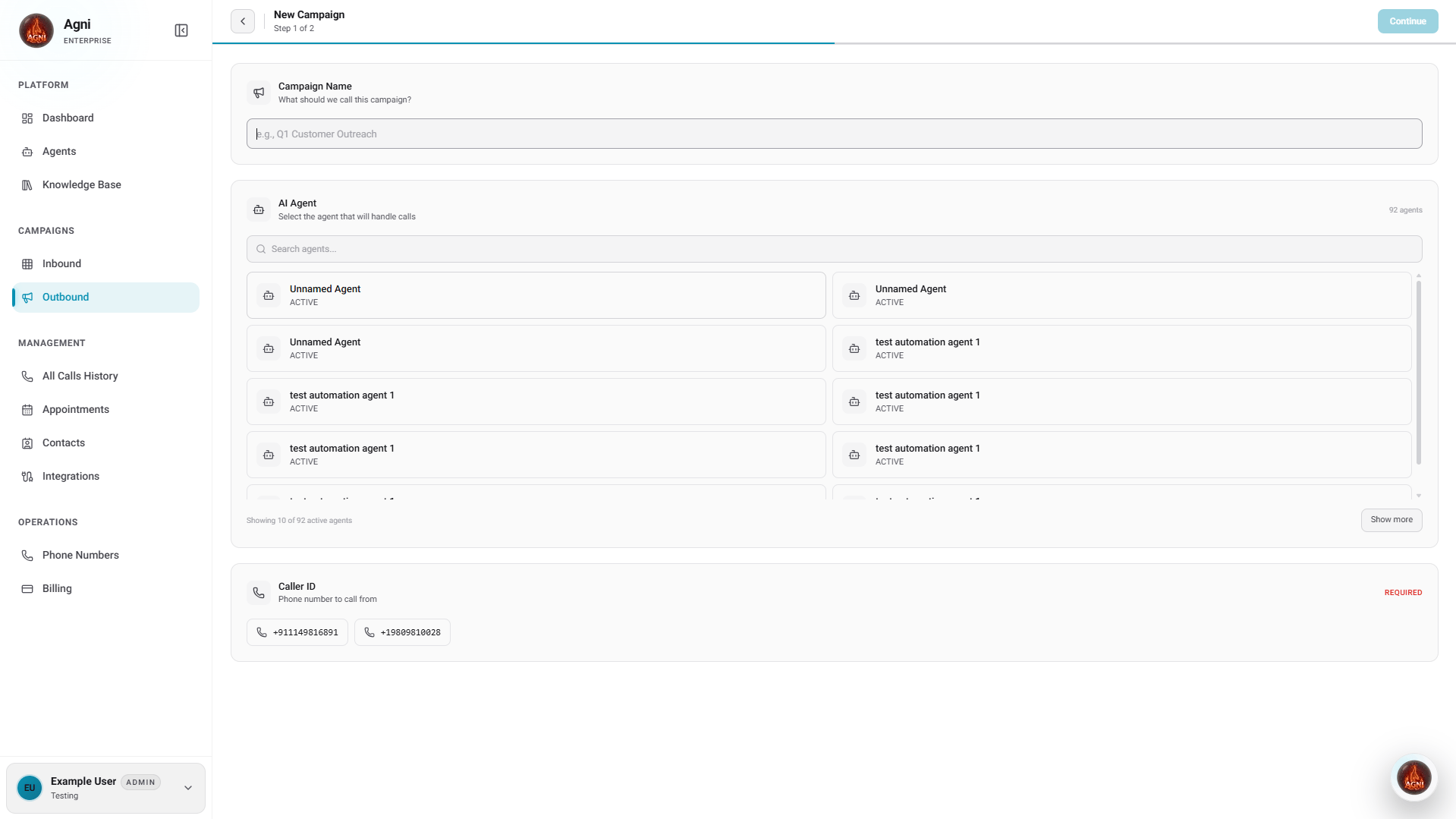 | Field | Description |
| ----------------- | ------------------------------------------------------------------------------------ |
| **Campaign Name** | A recognizable label for your campaign (e.g., "Q1 Customer Outreach") |
| **AI Agent** | The voice agent that will handle the calls. You can search across all active agents. |
| **Caller ID** | The phone number calls will be placed from. Select from your verified numbers. |
### Step 2 — Contacts & Settings
| Field | Description |
| ----------------- | ------------------------------------------------------------------------------------ |
| **Campaign Name** | A recognizable label for your campaign (e.g., "Q1 Customer Outreach") |
| **AI Agent** | The voice agent that will handle the calls. You can search across all active agents. |
| **Caller ID** | The phone number calls will be placed from. Select from your verified numbers. |
### Step 2 — Contacts & Settings
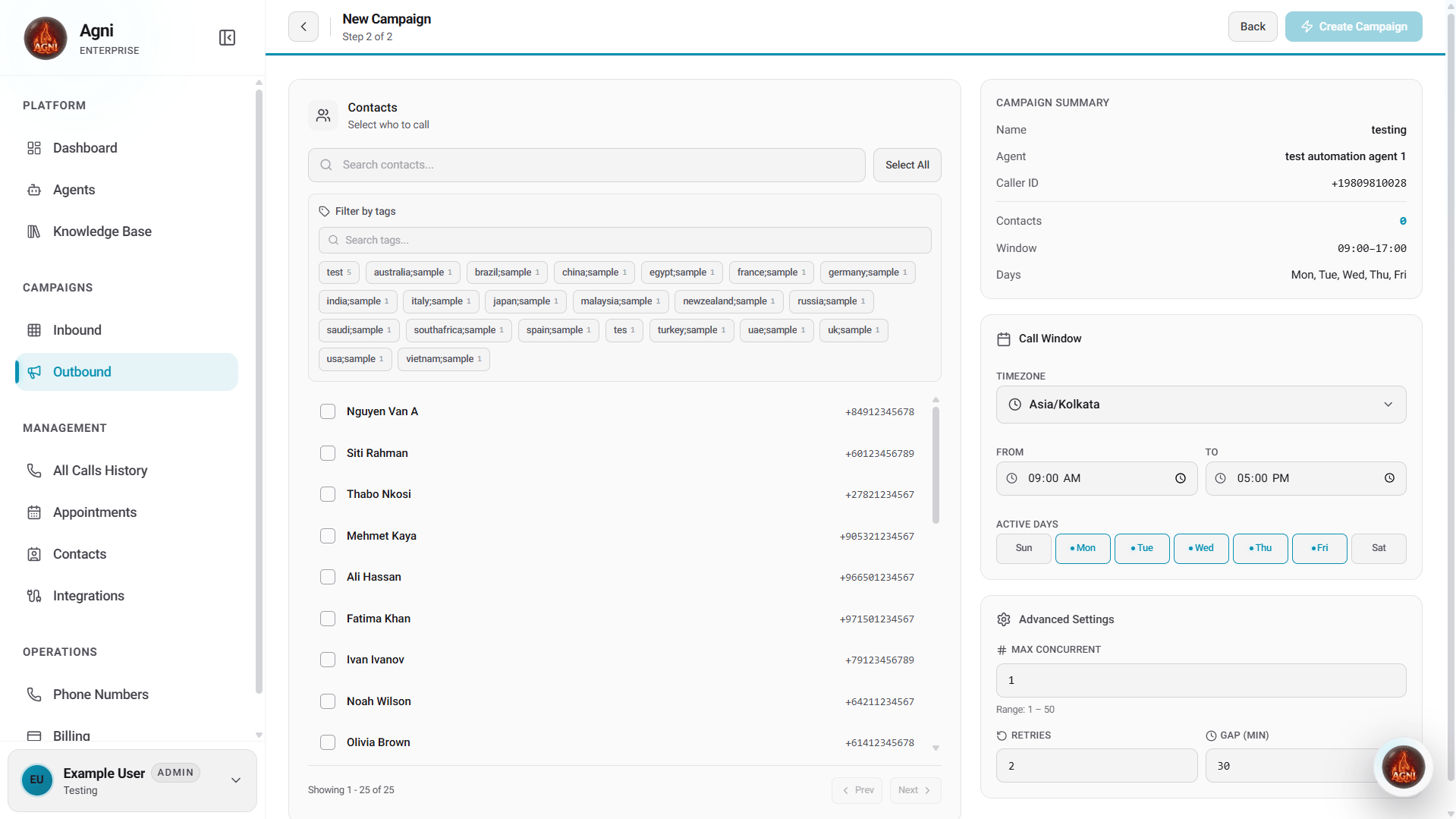 On the second step, select your contacts and configure the call schedule.
**Selecting Contacts**
Use the filter tabs to narrow your contact list:
| Tab | Description |
| ------------------ | -------------------------------------------- |
| **Fresh Leads** | Contacts that have never been called |
| **Need Follow-up** | Contacts that require a follow-up call |
| **Failed - Retry** | Contacts where previous call attempts failed |
| **All** | Your entire contact list |
You can also filter by **Tags**, **Status**, **Last Called**, or **Added** date, and use **Select All** to include your entire filtered list.
**Call Window**
Define when Agni is allowed to place calls:
| Setting | Description |
| --------------- | --------------------------------------------------------------------------- |
| **Timezone** | The timezone used to enforce your call window (e.g., UAE / Dubai UTC+04:00) |
| **From / To** | Start and end time for calls each day (default: 09:00 AM – 05:00 PM) |
| **Active Days** | Days of the week calls are permitted (default: Mon–Fri) |
**Advanced Settings**
| Setting | Description | Default |
| ------------------ | -------------------------------------------------------------- | --------------------- |
| **Max Concurrent** | Maximum simultaneous calls. Capped by your plan limit. | Up to 5 on free plans |
| **Retries** | Number of retry attempts per contact if the call is unanswered | 2 |
| **Gap (Min)** | Minimum time in minutes between retry attempts | 30 |
Max Concurrent calls are controlled by your plan. Free plans support up to 5 concurrent calls. Upgrade your plan to increase this limit.
On the second step, select your contacts and configure the call schedule.
**Selecting Contacts**
Use the filter tabs to narrow your contact list:
| Tab | Description |
| ------------------ | -------------------------------------------- |
| **Fresh Leads** | Contacts that have never been called |
| **Need Follow-up** | Contacts that require a follow-up call |
| **Failed - Retry** | Contacts where previous call attempts failed |
| **All** | Your entire contact list |
You can also filter by **Tags**, **Status**, **Last Called**, or **Added** date, and use **Select All** to include your entire filtered list.
**Call Window**
Define when Agni is allowed to place calls:
| Setting | Description |
| --------------- | --------------------------------------------------------------------------- |
| **Timezone** | The timezone used to enforce your call window (e.g., UAE / Dubai UTC+04:00) |
| **From / To** | Start and end time for calls each day (default: 09:00 AM – 05:00 PM) |
| **Active Days** | Days of the week calls are permitted (default: Mon–Fri) |
**Advanced Settings**
| Setting | Description | Default |
| ------------------ | -------------------------------------------------------------- | --------------------- |
| **Max Concurrent** | Maximum simultaneous calls. Capped by your plan limit. | Up to 5 on free plans |
| **Retries** | Number of retry attempts per contact if the call is unanswered | 2 |
| **Gap (Min)** | Minimum time in minutes between retry attempts | 30 |
Max Concurrent calls are controlled by your plan. Free plans support up to 5 concurrent calls. Upgrade your plan to increase this limit.
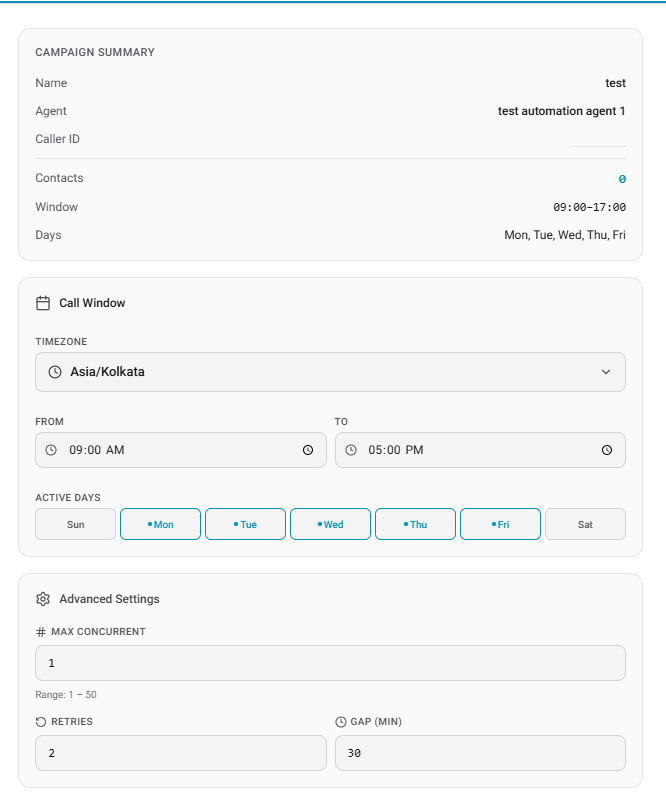 Click **Create Campaign** to finish. Your campaign will be created in **Draft** status.
***
## Starting a Campaign
After creation, you'll land on the campaign overview page. The campaign starts in **Draft** state — no calls are placed yet.
Click the **Start** button (top right) to activate the campaign. Agni will begin dialing contacts within your configured call window.
You can **pause** a running campaign at any time from the campaign card on the Campaigns page or from within the campaign overview.
***
## Campaign Overview
Once a campaign is created, clicking into it shows a full overview:
Click **Create Campaign** to finish. Your campaign will be created in **Draft** status.
***
## Starting a Campaign
After creation, you'll land on the campaign overview page. The campaign starts in **Draft** state — no calls are placed yet.
Click the **Start** button (top right) to activate the campaign. Agni will begin dialing contacts within your configured call window.
You can **pause** a running campaign at any time from the campaign card on the Campaigns page or from within the campaign overview.
***
## Campaign Overview
Once a campaign is created, clicking into it shows a full overview:
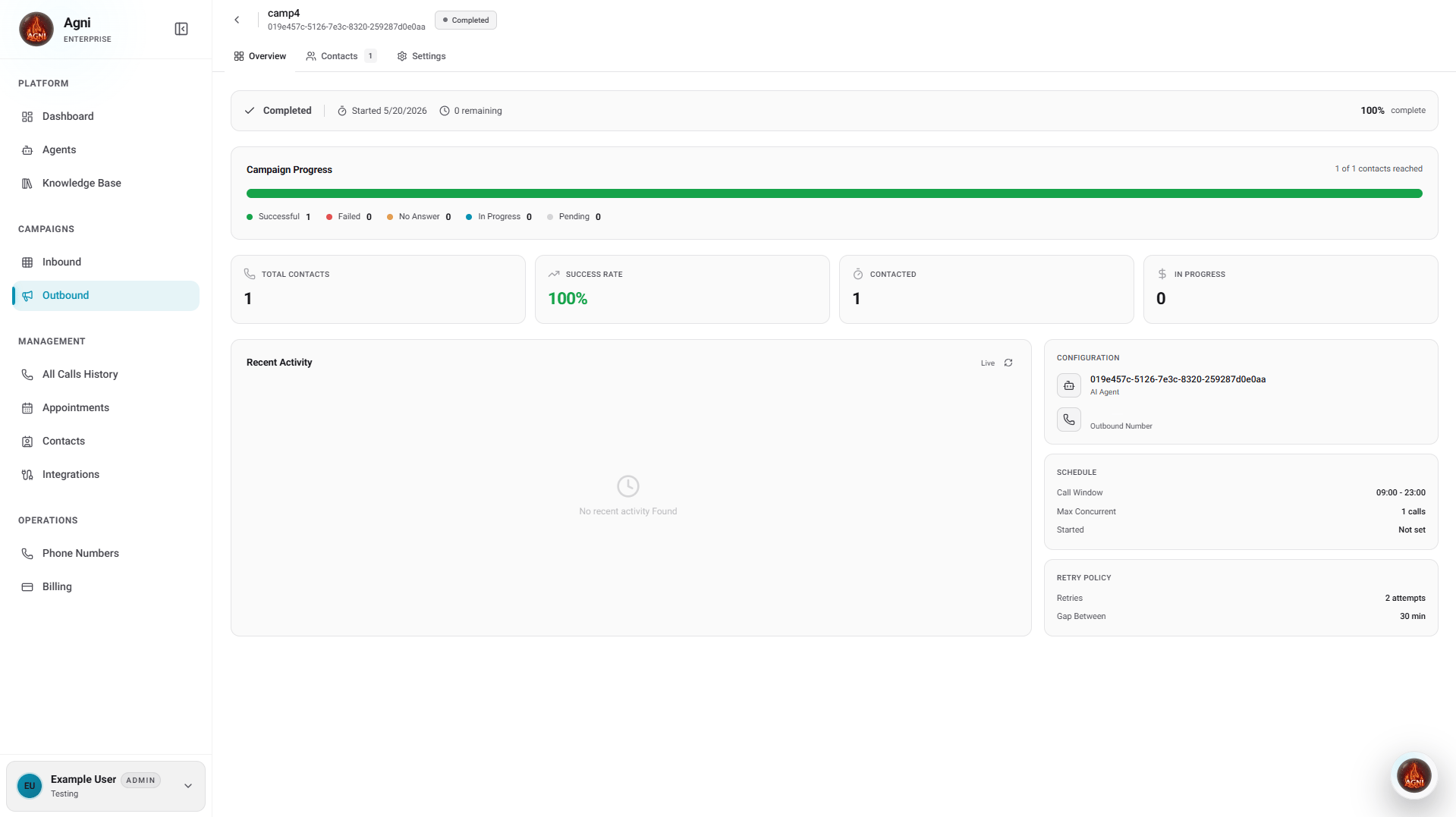 | Section | Description |
| --------------------- | ---------------------------------------------------------------------------- |
| **Campaign Progress** | Bar showing Successful, Failed, No Answer, In Progress, and Pending contacts |
| **Total Contacts** | Total number of contacts in the campaign |
| **Success Rate** | Percentage of calls that achieved the desired outcome |
| **Contacted** | Number of contacts successfully reached |
| **In Progress** | Calls currently being placed |
| **Recent Activity** | Live feed of call events as they happen |
The right panel shows your **Configuration** (agent, outbound number), **Schedule** (call window, max concurrent), and **Retry Policy** (attempts, gap between retries).
***
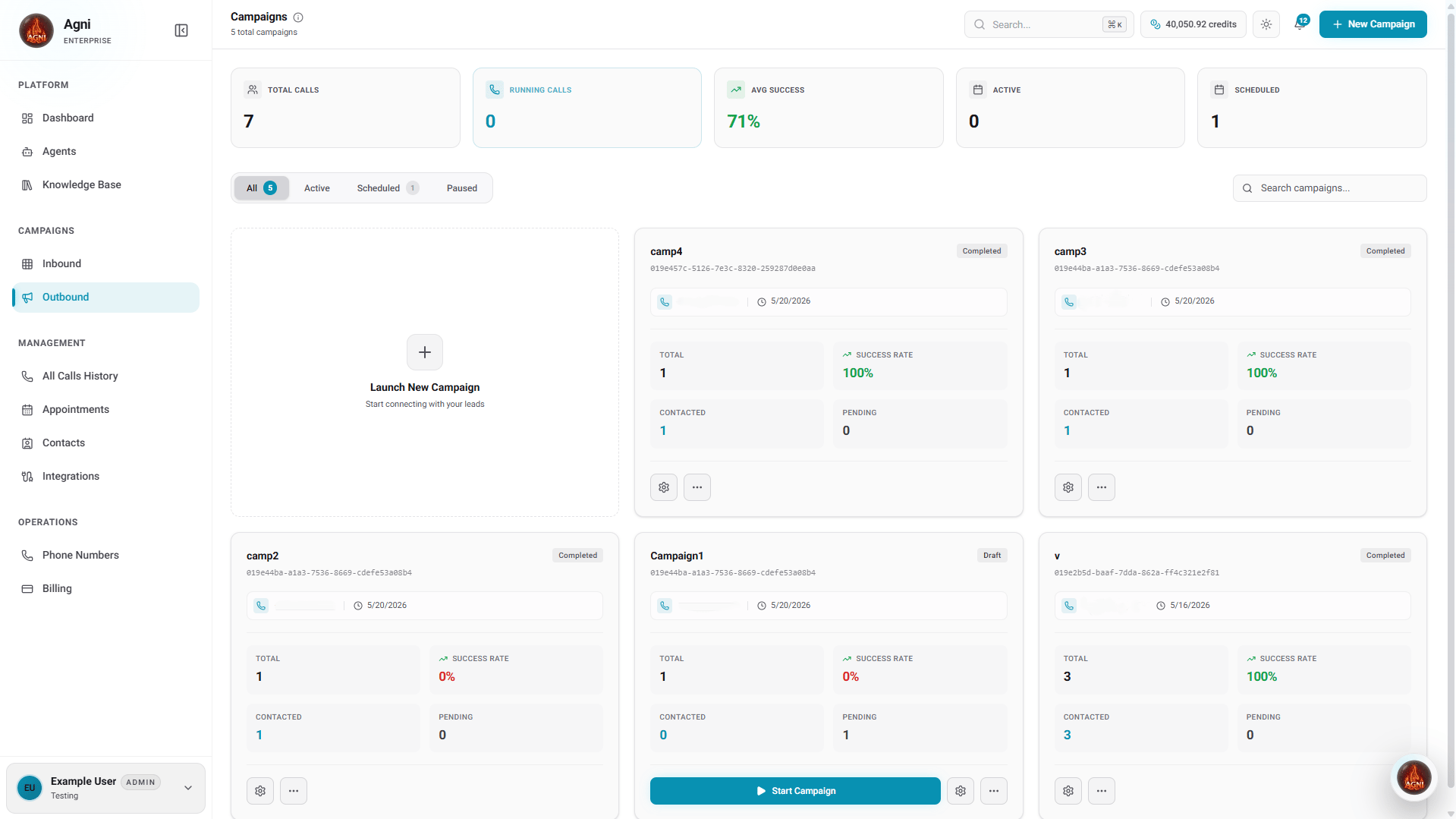
## Campaigns Dashboard
The main Campaigns page shows all your campaigns and a high-level summary at the top:
| Metric | Description |
| ----------------- | --------------------------------------- |
| **Total Calls** | Total calls placed across all campaigns |
| **Running Calls** | Calls currently in progress |
| **Avg Success** | Average success rate across campaigns |
| **Active** | Campaigns currently running |
| **Scheduled** | Campaigns scheduled to run |
Each campaign card displays the agent's phone number, creation date, total contacts, success rate, contacted count, and pending contacts. Campaigns can be in **Active**, **Paused**, **Completed**, or **Scheduled** states.
Use the filter tabs (**All**, **Active**, **Scheduled**, **Paused**) or the search bar to find specific campaigns.
***
## Contact Management
### Importing Contacts
Contacts can be added via CSV upload or the API before being assigned to a campaign.
**Via CSV Upload:**
```csv theme={null}
phone,name,company,appointment_date
+14155551234,John Smith,Acme Corp,March 30
+14155559876,Jane Doe,TechCo,April 2
+14155555555,Bob Wilson,StartupHQ,April 5
```
**Via API:**
```bash theme={null}
curl -X POST https://api.ravan.ai/api/v1/contacts/ \
-H "X-Api-Key: YOUR_API_KEY" \
-H "Content-Type: application/json" \
-d '{
"phone": "+14155551234",
"first_name": "John",
"last_name": "Smith",
"company": "Acme Corp",
"custom_fields": {
"appointment_date": "March 30"
}
}'
```
### Using Contact Data in Calls
Contact fields map to dynamic variables in your agent prompt:
```text theme={null}
You are calling {{first_name}} {{last_name}} from {{company}}
about their appointment on {{appointment_date}}.
```
***
## Campaign Patterns
**Goal:** Reduce no-shows by confirming appointments 24 hours ahead.
* Agent prompt: Confirm date/time, offer reschedule option
* Concurrency: 5–10 (high volume, short calls)
* Call window: Business hours, day before appointment
* Retries: 2
* Dynamic variables: `{{patient_name}}`, `{{appointment_date}}`, `{{doctor_name}}`
**Goal:** Qualify inbound leads before passing to sales.
* Agent prompt: Ask qualifying questions (budget, timeline, decision maker)
* Concurrency: 3–5 (longer conversations)
* Call window: Within 5 minutes of lead submission
* Retries: 3 (over 2 days)
* Post-call analysis: Extract qualification score
**Goal:** Collect NPS or satisfaction feedback post-purchase.
* Agent prompt: Ask 3–5 structured questions, thank the customer
* Concurrency: 5–8
* Call window: 2–7 days after purchase
* Retries: 2
* Post-call extraction: Rating (1–10), comments, follow-up needed
**Goal:** Win back churned or inactive customers.
* Agent prompt: Acknowledge absence, offer incentive, address concerns
* Concurrency: 3–5
* Call window: Weekday afternoons (highest answer rate)
* Retries: 2 (avoid being pushy)
* Tone: Warm, no hard sell
***
## Cost Optimization
Test with 50–100 contacts first. Optimize the prompt and settings before scaling to thousands.
Calls between 10am–12pm and 2pm–5pm local time have the highest answer rates. Avoid early mornings and late evenings.
2 retries with a 30-minute gap is a solid default. More retries rarely improve reach and increase costs.
Start at 2–5 concurrent calls and scale up. Free plans are capped at 5 — upgrade for higher throughput.
***
## Compliance
Outbound calling is regulated. Ensure compliance with local laws before launching campaigns.
* **TCPA (US)** — Obtain prior express consent before automated calls. Honor Do Not Call lists.
* **GDPR (EU)** — Lawful basis required for processing phone numbers. Provide opt-out on every call.
* **Local regulations** — Check calling hour restrictions in your target regions.
* **Caller ID** — Always display a valid caller ID number. Spoofing is illegal.
Agni provides tools to manage opt-outs and consent — use them. Non-compliance can result in significant fines.
| Section | Description |
| --------------------- | ---------------------------------------------------------------------------- |
| **Campaign Progress** | Bar showing Successful, Failed, No Answer, In Progress, and Pending contacts |
| **Total Contacts** | Total number of contacts in the campaign |
| **Success Rate** | Percentage of calls that achieved the desired outcome |
| **Contacted** | Number of contacts successfully reached |
| **In Progress** | Calls currently being placed |
| **Recent Activity** | Live feed of call events as they happen |
The right panel shows your **Configuration** (agent, outbound number), **Schedule** (call window, max concurrent), and **Retry Policy** (attempts, gap between retries).
***
## Campaigns Dashboard
The main Campaigns page shows all your campaigns and a high-level summary at the top:
| Metric | Description |
| ----------------- | --------------------------------------- |
| **Total Calls** | Total calls placed across all campaigns |
| **Running Calls** | Calls currently in progress |
| **Avg Success** | Average success rate across campaigns |
| **Active** | Campaigns currently running |
| **Scheduled** | Campaigns scheduled to run |
Each campaign card displays the agent's phone number, creation date, total contacts, success rate, contacted count, and pending contacts. Campaigns can be in **Active**, **Paused**, **Completed**, or **Scheduled** states.
Use the filter tabs (**All**, **Active**, **Scheduled**, **Paused**) or the search bar to find specific campaigns.
***
## Contact Management
### Importing Contacts
Contacts can be added via CSV upload or the API before being assigned to a campaign.
**Via CSV Upload:**
```csv theme={null}
phone,name,company,appointment_date
+14155551234,John Smith,Acme Corp,March 30
+14155559876,Jane Doe,TechCo,April 2
+14155555555,Bob Wilson,StartupHQ,April 5
```
**Via API:**
```bash theme={null}
curl -X POST https://api.ravan.ai/api/v1/contacts/ \
-H "X-Api-Key: YOUR_API_KEY" \
-H "Content-Type: application/json" \
-d '{
"phone": "+14155551234",
"first_name": "John",
"last_name": "Smith",
"company": "Acme Corp",
"custom_fields": {
"appointment_date": "March 30"
}
}'
```
### Using Contact Data in Calls
Contact fields map to dynamic variables in your agent prompt:
```text theme={null}
You are calling {{first_name}} {{last_name}} from {{company}}
about their appointment on {{appointment_date}}.
```
***
## Campaign Patterns
**Goal:** Reduce no-shows by confirming appointments 24 hours ahead.
* Agent prompt: Confirm date/time, offer reschedule option
* Concurrency: 5–10 (high volume, short calls)
* Call window: Business hours, day before appointment
* Retries: 2
* Dynamic variables: `{{patient_name}}`, `{{appointment_date}}`, `{{doctor_name}}`
**Goal:** Qualify inbound leads before passing to sales.
* Agent prompt: Ask qualifying questions (budget, timeline, decision maker)
* Concurrency: 3–5 (longer conversations)
* Call window: Within 5 minutes of lead submission
* Retries: 3 (over 2 days)
* Post-call analysis: Extract qualification score
**Goal:** Collect NPS or satisfaction feedback post-purchase.
* Agent prompt: Ask 3–5 structured questions, thank the customer
* Concurrency: 5–8
* Call window: 2–7 days after purchase
* Retries: 2
* Post-call extraction: Rating (1–10), comments, follow-up needed
**Goal:** Win back churned or inactive customers.
* Agent prompt: Acknowledge absence, offer incentive, address concerns
* Concurrency: 3–5
* Call window: Weekday afternoons (highest answer rate)
* Retries: 2 (avoid being pushy)
* Tone: Warm, no hard sell
***
## Cost Optimization
Test with 50–100 contacts first. Optimize the prompt and settings before scaling to thousands.
Calls between 10am–12pm and 2pm–5pm local time have the highest answer rates. Avoid early mornings and late evenings.
2 retries with a 30-minute gap is a solid default. More retries rarely improve reach and increase costs.
Start at 2–5 concurrent calls and scale up. Free plans are capped at 5 — upgrade for higher throughput.
***
## Compliance
Outbound calling is regulated. Ensure compliance with local laws before launching campaigns.
* **TCPA (US)** — Obtain prior express consent before automated calls. Honor Do Not Call lists.
* **GDPR (EU)** — Lawful basis required for processing phone numbers. Provide opt-out on every call.
* **Local regulations** — Check calling hour restrictions in your target regions.
* **Caller ID** — Always display a valid caller ID number. Spoofing is illegal.
Agni provides tools to manage opt-outs and consent — use them. Non-compliance can result in significant fines.