> ## Documentation Index
> Fetch the complete documentation index at: https://docs.ravan.ai/llms.txt
> Use this file to discover all available pages before exploring further.
# Dashboard Overview
> Your central command center for monitoring agent performance, tracking usage, and navigating your Agni workspace.
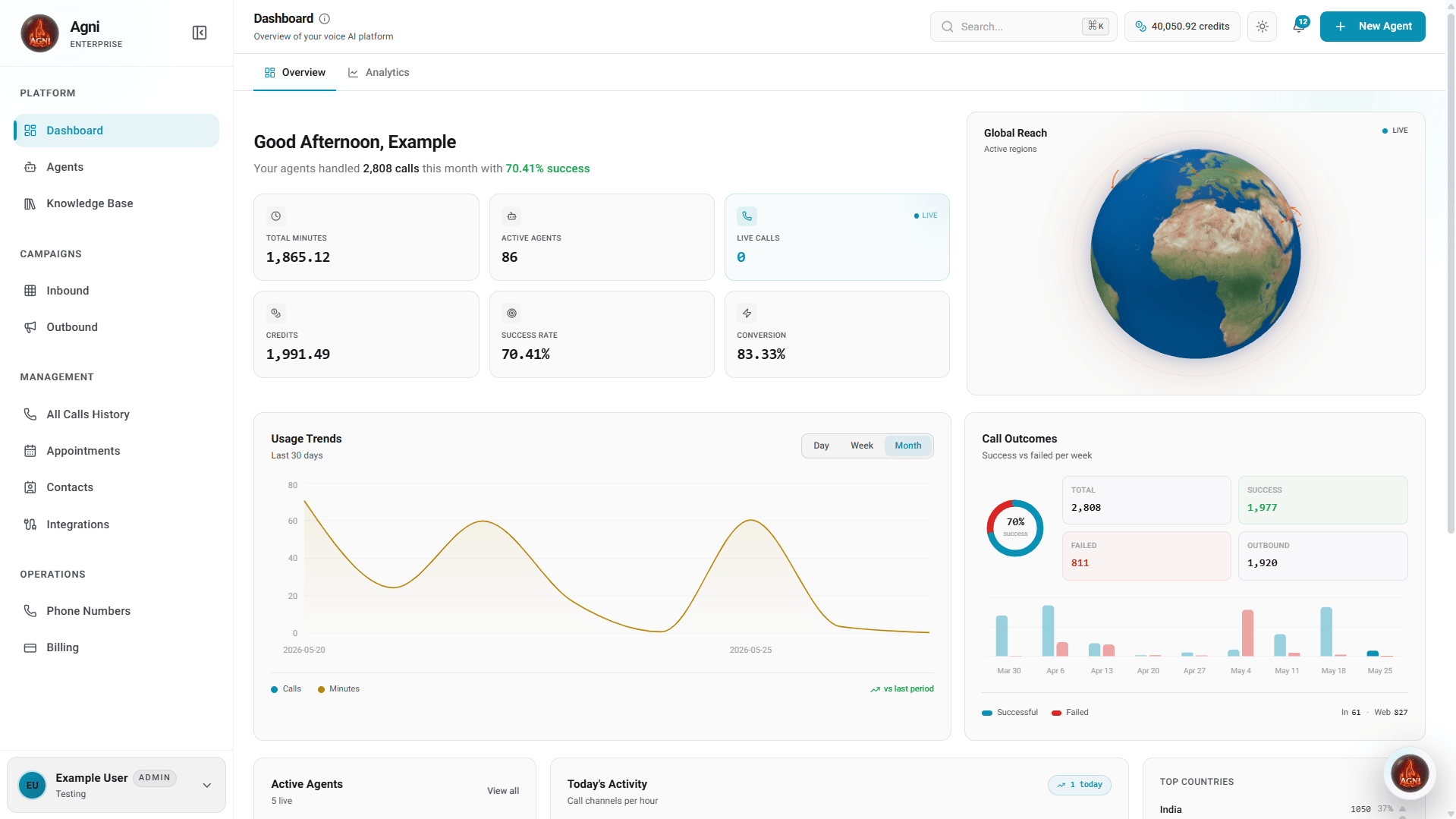
Once you log in, you are greeted by the Agni Dashboard. This is your central command center for monitoring agent performance, tracking usage, visualizing live traffic, and navigating your voice AI infrastructure.
 ***
## At-a-Glance Metrics
At the top of your dashboard, you can quickly assess the high-level health and performance of your voice agents in real time:
Displays the aggregate conversational minutes consumed by your organization.
Displays the total number of AI agents currently active within your organization.
Shows the number of real-time, concurrent calls currently happening through your organization.
Shows the total amount of credits burned or consumed by your organization to date.
Highlights the overall percentage of calls made through the organization that successfully achieved their objective.
Displays the total number of customers that have been successfully converted during interactions.
***
## Live Visualizations & Analytics
The center of the dashboard provides a suite of interactive widgets to help you monitor system load and campaign outcomes dynamically.
A live 3D visualization showing exactly where in the world your active calls are currently taking place. Useful for understanding your geographic distribution.
Track how many calls and minutes have been spent over a specified period. Toggle between **Day**, **Week**, or **Month** views to spot patterns.
A detailed breakdown displaying the number of Total Outbound Calls, Total Failed Calls, Total Success Calls, and overall Total Calls.
Shows the total call volume for the current day, categorized by outbound, inbound, and web calls.
A quick view of your currently active agents and the respective number of calls they have handled.
Highlights the countries that have received the most calls or where you have initiated the highest call volume.
***
## Quick Actions
Located at the bottom of the dashboard, the **Quick Actions** panel provides one-click access to your most common operational workflows:
Build a new AI assistant.
Launch outbound calls.
Import or create users.
Provision a phone number.
***
## Workspace Navigation
The left sidebar is your primary map for navigating your Agni workspace. It is divided into focused sections:
Your daily operational views and agent configurations.
* **[Dashboard](/guides/dashboard):** Your high-level overview and metrics.
* **[Agents](/guides/agents):** Create, update, and deploy your AI agents.
* **[Knowledge Base](/guides/knowledge-base):** Manage the data and documents your agents use for context.
Build and tune agent behavior.
* **[Tools](/guides/tools):** Configure functions, actions, and integrations used by agents.
* **[Prompt Engineering](/guides/prompt-engineering):** Design prompts, guardrails, and response behavior.
Configure inbound and outbound calling workflows.
* **[Inbound Calls](/guides/inbound-calls):** Configure routing for incoming traffic.
* **[Outbound](/guides/campaigns):** Manage and monitor outbound calling workflows.
Detailed tracking and relationship management.
* **[All Call History](/guides/calls):** Review detailed call logs, transcripts, and session data.
* **[Appointments](/guides/appointments):** Manage booked calendar events and scheduling.
* **[Contacts](/guides/contacts):** Manage your CRM and address book.
* **[Integration](/guides/Integration):** Connect third-party systems and data flows.
The backend infrastructure of your workspace.
* **[Phone Numbers](/guides/phone-numbers):** Buy, import, and release phone numbers.
* **[Billing](/guides/billing):** Manage your subscription, credits, and invoices.
***
## At-a-Glance Metrics
At the top of your dashboard, you can quickly assess the high-level health and performance of your voice agents in real time:
Displays the aggregate conversational minutes consumed by your organization.
Displays the total number of AI agents currently active within your organization.
Shows the number of real-time, concurrent calls currently happening through your organization.
Shows the total amount of credits burned or consumed by your organization to date.
Highlights the overall percentage of calls made through the organization that successfully achieved their objective.
Displays the total number of customers that have been successfully converted during interactions.
***
## Live Visualizations & Analytics
The center of the dashboard provides a suite of interactive widgets to help you monitor system load and campaign outcomes dynamically.
A live 3D visualization showing exactly where in the world your active calls are currently taking place. Useful for understanding your geographic distribution.
Track how many calls and minutes have been spent over a specified period. Toggle between **Day**, **Week**, or **Month** views to spot patterns.
A detailed breakdown displaying the number of Total Outbound Calls, Total Failed Calls, Total Success Calls, and overall Total Calls.
Shows the total call volume for the current day, categorized by outbound, inbound, and web calls.
A quick view of your currently active agents and the respective number of calls they have handled.
Highlights the countries that have received the most calls or where you have initiated the highest call volume.
***
## Quick Actions
Located at the bottom of the dashboard, the **Quick Actions** panel provides one-click access to your most common operational workflows:
Build a new AI assistant.
Launch outbound calls.
Import or create users.
Provision a phone number.
***
## Workspace Navigation
The left sidebar is your primary map for navigating your Agni workspace. It is divided into focused sections:
Your daily operational views and agent configurations.
* **[Dashboard](/guides/dashboard):** Your high-level overview and metrics.
* **[Agents](/guides/agents):** Create, update, and deploy your AI agents.
* **[Knowledge Base](/guides/knowledge-base):** Manage the data and documents your agents use for context.
Build and tune agent behavior.
* **[Tools](/guides/tools):** Configure functions, actions, and integrations used by agents.
* **[Prompt Engineering](/guides/prompt-engineering):** Design prompts, guardrails, and response behavior.
Configure inbound and outbound calling workflows.
* **[Inbound Calls](/guides/inbound-calls):** Configure routing for incoming traffic.
* **[Outbound](/guides/campaigns):** Manage and monitor outbound calling workflows.
Detailed tracking and relationship management.
* **[All Call History](/guides/calls):** Review detailed call logs, transcripts, and session data.
* **[Appointments](/guides/appointments):** Manage booked calendar events and scheduling.
* **[Contacts](/guides/contacts):** Manage your CRM and address book.
* **[Integration](/guides/Integration):** Connect third-party systems and data flows.
The backend infrastructure of your workspace.
* **[Phone Numbers](/guides/phone-numbers):** Buy, import, and release phone numbers.
* **[Billing](/guides/billing):** Manage your subscription, credits, and invoices.