> ## Documentation Index
> Fetch the complete documentation index at: https://docs.ravan.ai/llms.txt
> Use this file to discover all available pages before exploring further.
# Inbound Calls
> Connect phone numbers to AI agents with dispatch rules so your agents automatically answer incoming calls.
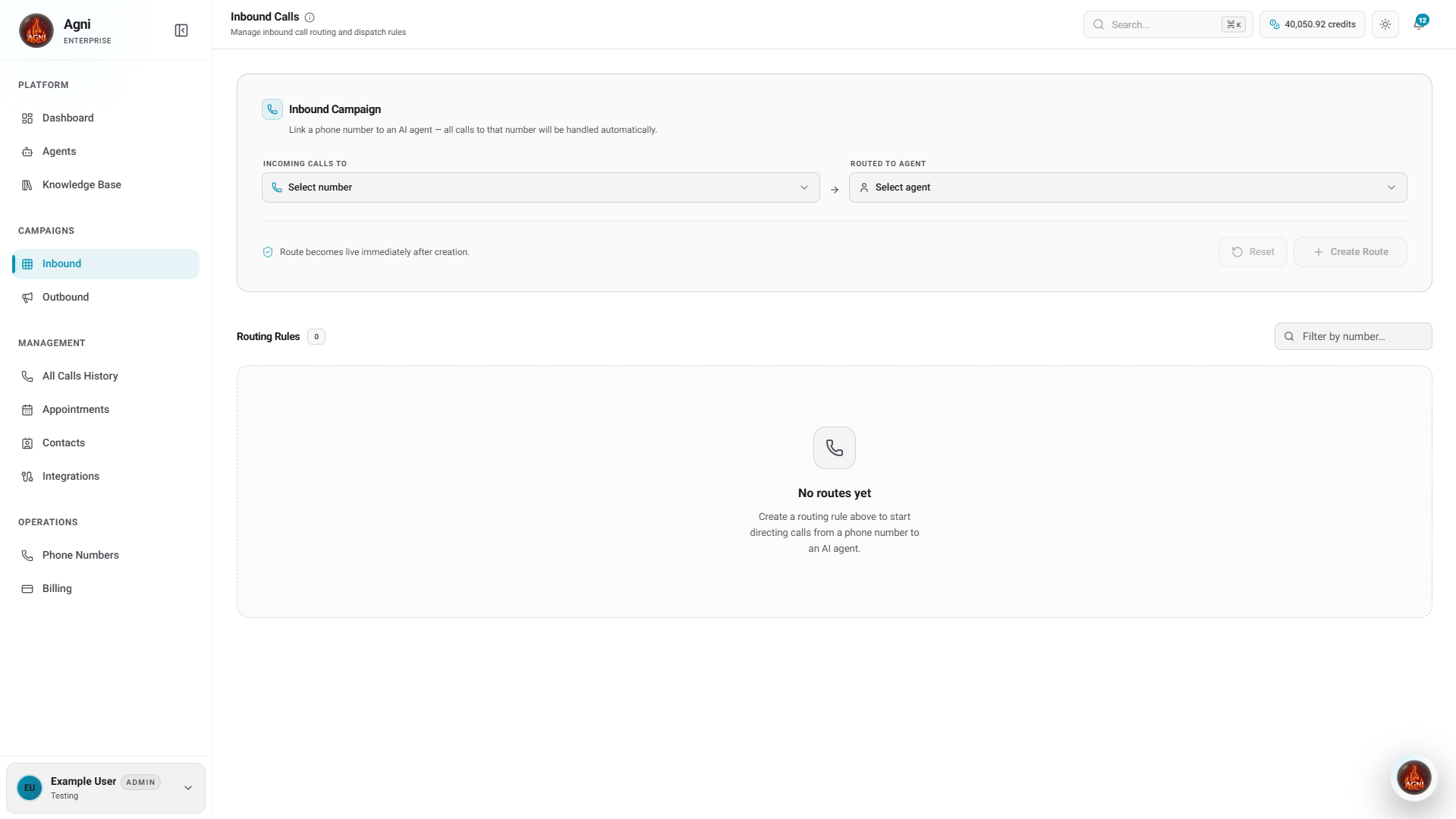
The **Inbound Calls** page in the **Campaigns** section is where you connect the phone numbers you own to the AI agents you have built. By creating **Dispatch Rules**, you dictate exactly which agent answers the phone when a customer dials a specific number.
 ***
## Prerequisites
Before creating dispatch rules, make sure you have:
You need an active, configured agent to answer the phone.
You must have a purchased or imported phone number available in your workspace.
***
## Create an Inbound Campaign
Setting up a new inbound campaign (dispatch rule) takes only a few clicks. Once configured, the route becomes **live immediately** after creation.
Under **Incoming Calls To**, click the dropdown and select the phone number the public will dial. If you have no numbers yet, follow the **buy one first** link.
Under **Routed To Agent**, click the dropdown and select the AI agent you want to handle the incoming calls.
Expand the **Schedule & Rules** section to control when and how inbound calls are handled:
| Setting | Description |
| --------------------------- | ---------------------------------------------------------------------------------------------------------- |
| **Timezone** | The timezone used to interpret all time-window settings. |
| **Max Concurrent Calls** | Maximum simultaneous live calls for this route (Range: 1–10). |
| **Start Date** | The date from which this inbound route starts accepting calls. |
| **End Date** | The date on which this route stops accepting calls. |
| **Call Window Start / End** | Restrict calls to a specific daily time range (e.g., 09:00–18:00). Leave blank to allow calls at any time. |
| **Active Days** | Toggle individual days of the week (Mon–Sun) on which the route is active. |
Click the **+ Create Route** button to activate the campaign. Your agent is now live and will start handling inbound calls immediately.
**Strict 1-to-1 Mapping:** You can only create **one** inbound call route per phone number. If you want to assign a new agent to a number that is already in use, you must first complete or delete the previous inbound call rule.
***
## Inbound Route Detail View
Once a dispatch rule is created, it will appear in your **Inbound Call Rules** list. Clicking on a specific active rule opens the detailed Route Dashboard. This gives you a comprehensive overview of how that specific number is performing.
***
## Prerequisites
Before creating dispatch rules, make sure you have:
You need an active, configured agent to answer the phone.
You must have a purchased or imported phone number available in your workspace.
***
## Create an Inbound Campaign
Setting up a new inbound campaign (dispatch rule) takes only a few clicks. Once configured, the route becomes **live immediately** after creation.
Under **Incoming Calls To**, click the dropdown and select the phone number the public will dial. If you have no numbers yet, follow the **buy one first** link.
Under **Routed To Agent**, click the dropdown and select the AI agent you want to handle the incoming calls.
Expand the **Schedule & Rules** section to control when and how inbound calls are handled:
| Setting | Description |
| --------------------------- | ---------------------------------------------------------------------------------------------------------- |
| **Timezone** | The timezone used to interpret all time-window settings. |
| **Max Concurrent Calls** | Maximum simultaneous live calls for this route (Range: 1–10). |
| **Start Date** | The date from which this inbound route starts accepting calls. |
| **End Date** | The date on which this route stops accepting calls. |
| **Call Window Start / End** | Restrict calls to a specific daily time range (e.g., 09:00–18:00). Leave blank to allow calls at any time. |
| **Active Days** | Toggle individual days of the week (Mon–Sun) on which the route is active. |
Click the **+ Create Route** button to activate the campaign. Your agent is now live and will start handling inbound calls immediately.
**Strict 1-to-1 Mapping:** You can only create **one** inbound call route per phone number. If you want to assign a new agent to a number that is already in use, you must first complete or delete the previous inbound call rule.
***
## Inbound Route Detail View
Once a dispatch rule is created, it will appear in your **Inbound Call Rules** list. Clicking on a specific active rule opens the detailed Route Dashboard. This gives you a comprehensive overview of how that specific number is performing.
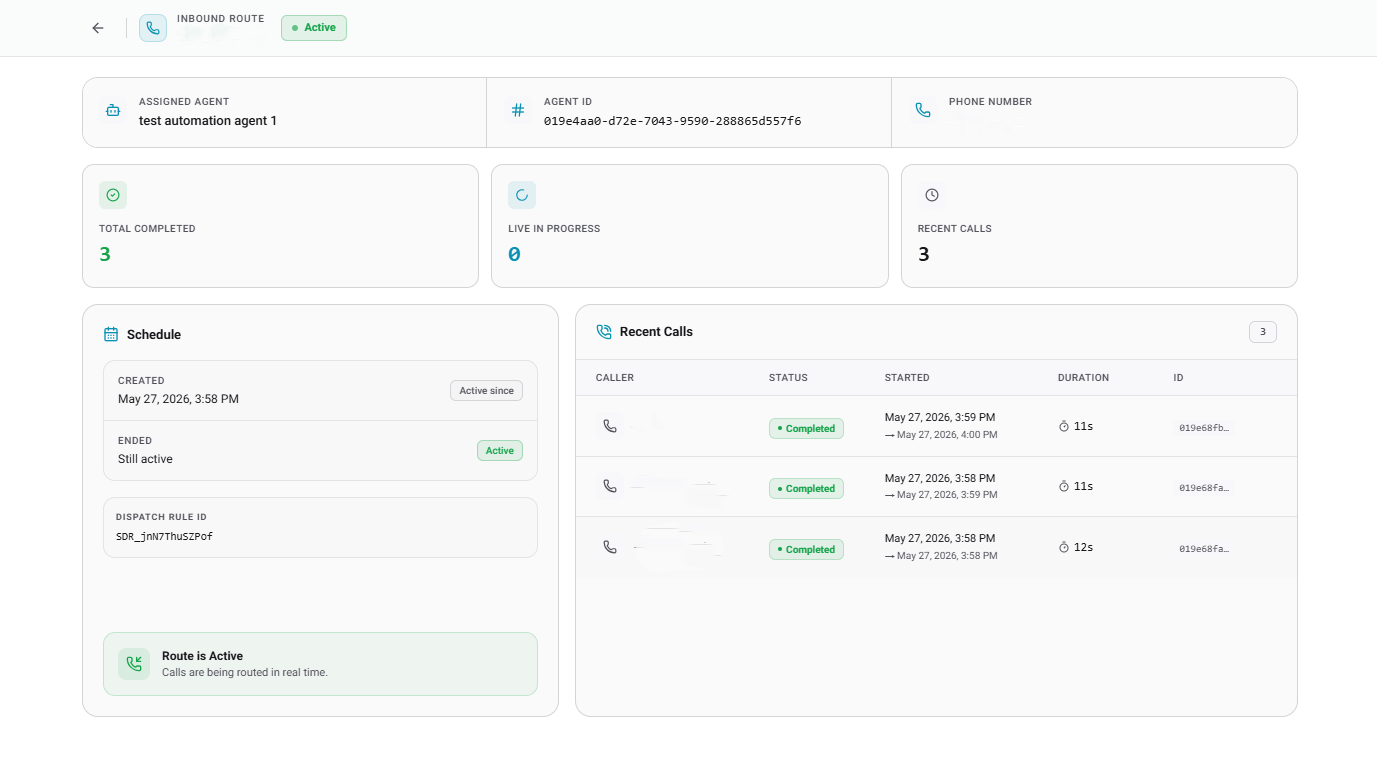 The detail view provides several key pieces of information:
* **Identity & Routing:** Quickly verify the **Assigned Agent**, the specific **Agent ID**, and the designated **Phone Number**.
* **Performance Metrics:** Monitor volume at a glance with counters for **Total Completed** calls, calls currently **Live In Progress**, and the total number of **Recent Calls**.
* **Schedule & Status:** The Schedule block confirms when the route was **Created**, when it ended (or if it is **Still active**), and provides the unique **Dispatch Rule ID**.
* **Recent Calls Log:** A dedicated table at the bottom of the page displays a live feed of all the calls that have recently come through this specific inbound route.
***
## Common Routing Patterns
The simplest setup. Buy a number, assign it to an agent, and you're live. Ideal for a single product line or department.
Buy separate numbers for sales, support, and billing. Create a dispatch rule for each, routing to specialized agents with different prompts and tools.
Use the **Call Window Start/End** and **Active Days** settings to restrict when your agent answers calls. For example, set window 09:00–18:00 on Mon–Fri to only route calls during business hours.
Use unique phone numbers for different marketing campaigns or ad channels. Route each to the same agent but use dynamic variables to track which campaign the caller came from.
***
## API Reference
To manage phone numbers and agents programmatically, refer to the following API endpoints:
List, buy, and manage the phone numbers available for routing.
Retrieve the list of your configured AI agents to use in dispatch rules.
The detail view provides several key pieces of information:
* **Identity & Routing:** Quickly verify the **Assigned Agent**, the specific **Agent ID**, and the designated **Phone Number**.
* **Performance Metrics:** Monitor volume at a glance with counters for **Total Completed** calls, calls currently **Live In Progress**, and the total number of **Recent Calls**.
* **Schedule & Status:** The Schedule block confirms when the route was **Created**, when it ended (or if it is **Still active**), and provides the unique **Dispatch Rule ID**.
* **Recent Calls Log:** A dedicated table at the bottom of the page displays a live feed of all the calls that have recently come through this specific inbound route.
***
## Common Routing Patterns
The simplest setup. Buy a number, assign it to an agent, and you're live. Ideal for a single product line or department.
Buy separate numbers for sales, support, and billing. Create a dispatch rule for each, routing to specialized agents with different prompts and tools.
Use the **Call Window Start/End** and **Active Days** settings to restrict when your agent answers calls. For example, set window 09:00–18:00 on Mon–Fri to only route calls during business hours.
Use unique phone numbers for different marketing campaigns or ad channels. Route each to the same agent but use dynamic variables to track which campaign the caller came from.
***
## API Reference
To manage phone numbers and agents programmatically, refer to the following API endpoints:
List, buy, and manage the phone numbers available for routing.
Retrieve the list of your configured AI agents to use in dispatch rules.