> ## Documentation Index
> Fetch the complete documentation index at: https://docs.ravan.ai/llms.txt
> Use this file to discover all available pages before exploring further.
# Knowledge Base
> Give your voice agents domain expertise with RAG-powered knowledge bases. Upload documents, configure retrieval, and improve answer accuracy.
# Knowledge Base (RAG)
Knowledge bases let your voice agents answer questions using your own data — product catalogs, FAQs, policies, pricing sheets, and more. Powered by Retrieval-Augmented Generation (RAG), your agent searches your knowledge base in real-time during calls to give accurate, contextual answers.
***
## How It Works
Give your knowledge base a name and choose whether to enable Auto Refresh for URL sources.
Add content via Text, URL, or File. Agni indexes your content automatically after each source is added.
Use the built-in Playground to query your knowledge base and verify it returns the right information before going live.
Open your agent in the agent builder and select the knowledge base from the Knowledge Base section.
***
## Creating a Knowledge Base
Navigate to **Knowledge Base** in the sidebar and click **+ Create Knowledge Base**.
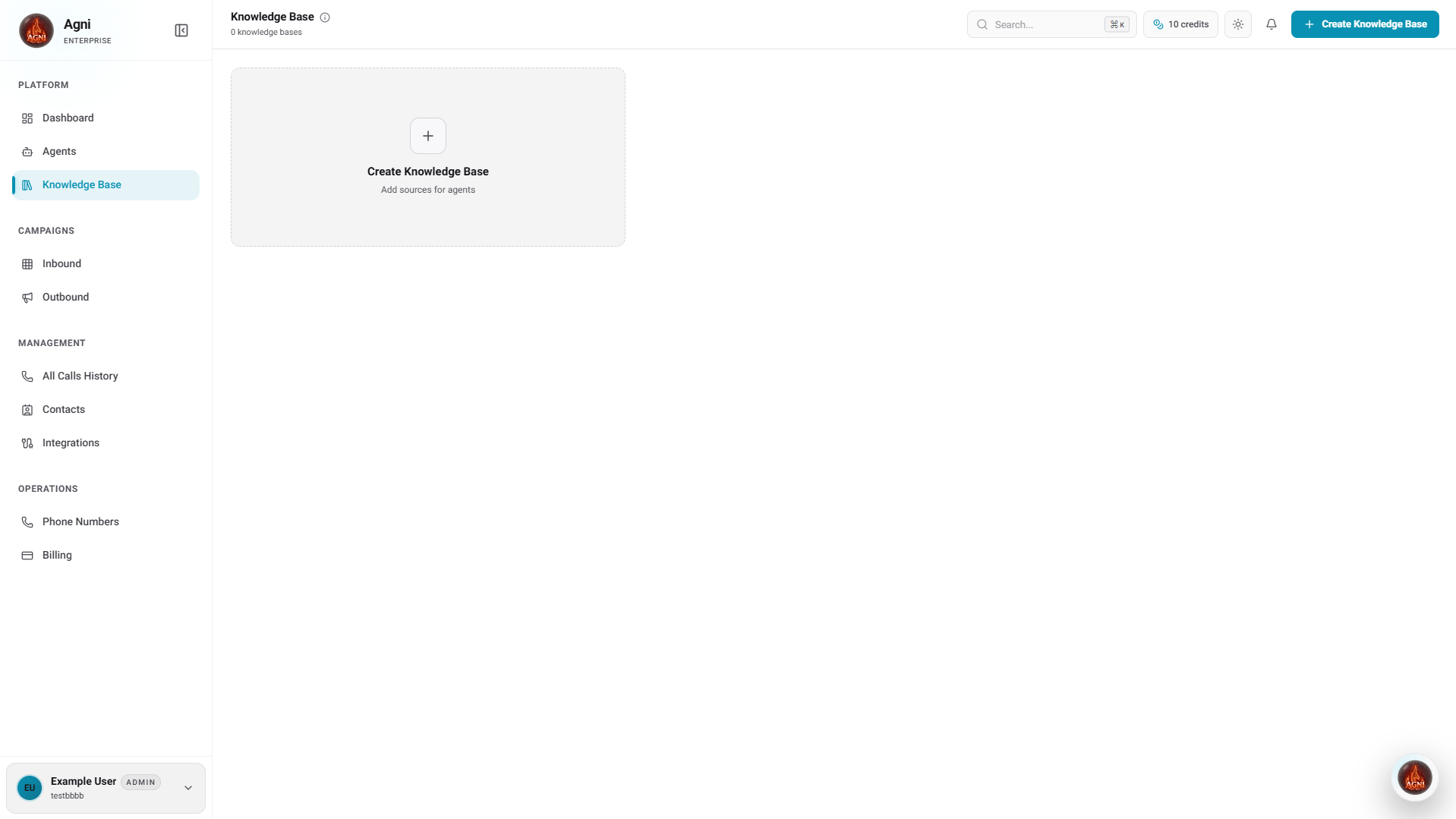 A modal will appear with two fields:
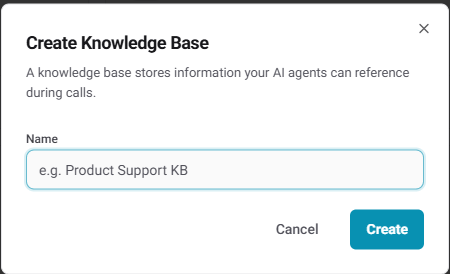 | Field | Description |
| ---------------- | ---------------------------------------------------------------------------------------------- |
| **Name** | A label for your knowledge base (e.g., "Product Support KB") |
| **Auto Refresh** | When enabled, Agni automatically re-crawls URL sources periodically to keep content up to date |
Click **Create** to create the knowledge base. You'll be taken to the knowledge base detail page.
***
## Adding Sources
After creating a knowledge base, click **+ Add Source** to add content.
| Field | Description |
| ---------------- | ---------------------------------------------------------------------------------------------- |
| **Name** | A label for your knowledge base (e.g., "Product Support KB") |
| **Auto Refresh** | When enabled, Agni automatically re-crawls URL sources periodically to keep content up to date |
Click **Create** to create the knowledge base. You'll be taken to the knowledge base detail page.
***
## Adding Sources
After creating a knowledge base, click **+ Add Source** to add content.
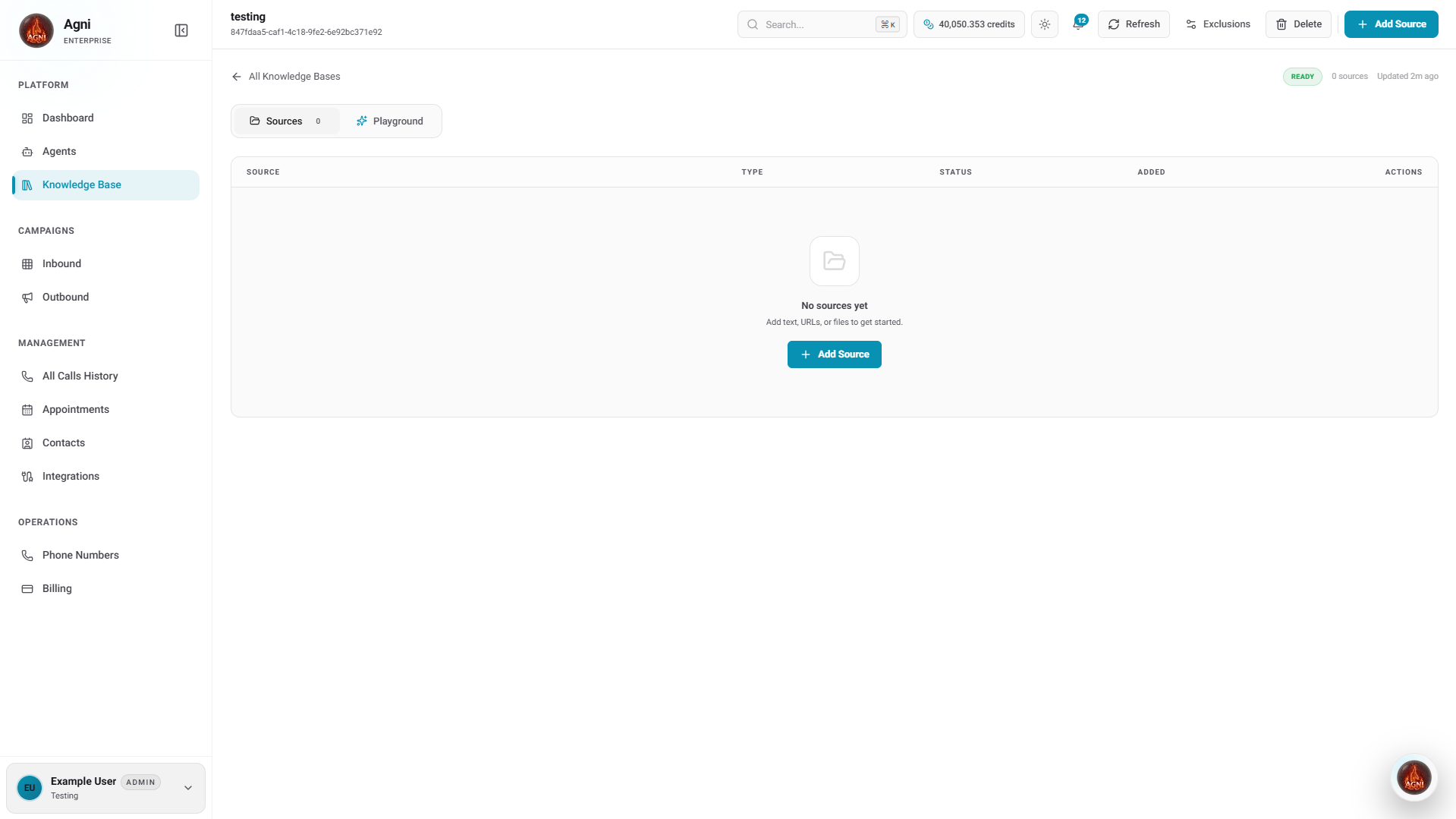 The **Add Source** modal offers three source types:
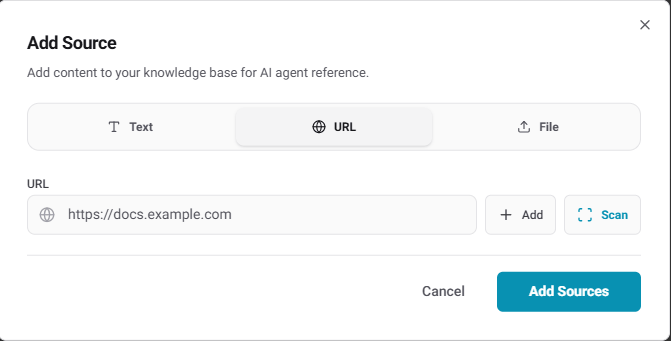 Paste raw text or Q\&A content directly. Ideal for FAQs, policies, and short reference documents.
Enter a URL and click **Scan** to discover all linked pages. Select which URLs to index — you can select up to 500 at a time — then click **Add Sources**.
Use **Select All** to include all discovered URLs, or manually check individual pages.
Upload PDF, TXT, or other supported document formats. Agni extracts and indexes the content automatically.
Once added, your sources appear in the **Sources** tab with their type, indexing status, and date added.
Paste raw text or Q\&A content directly. Ideal for FAQs, policies, and short reference documents.
Enter a URL and click **Scan** to discover all linked pages. Select which URLs to index — you can select up to 500 at a time — then click **Add Sources**.
Use **Select All** to include all discovered URLs, or manually check individual pages.
Upload PDF, TXT, or other supported document formats. Agni extracts and indexes the content automatically.
Once added, your sources appear in the **Sources** tab with their type, indexing status, and date added.
 | Column | Description |
| ---------- | ------------------------------------------------------- |
| **Source** | The source name or URL |
| **Type** | `URL`, `Text`, or `File` |
| **Status** | `COMPLETE` once indexed; shows progress during indexing |
| **Added** | Date the source was added |
***
## Managing Your Knowledge Base
From the knowledge base detail page, you have access to the following actions:
| Action | Description |
| -------------- | --------------------------------------------------------------------------- |
| **Refresh** | Manually re-crawl and re-index all URL sources |
| **Exclusions** | Add URL patterns to exclude from indexing (e.g., `/admin/*`, `/internal/*`) |
| **Delete** | Permanently delete the knowledge base |
The status badge in the top right (e.g., **READY**) shows whether the knowledge base is indexed and available. **Auto-refresh** is shown next to it when enabled.
***
## Testing with Playground
Click the **Playground** tab inside your knowledge base to test retrieval before connecting it to an agent.
| Column | Description |
| ---------- | ------------------------------------------------------- |
| **Source** | The source name or URL |
| **Type** | `URL`, `Text`, or `File` |
| **Status** | `COMPLETE` once indexed; shows progress during indexing |
| **Added** | Date the source was added |
***
## Managing Your Knowledge Base
From the knowledge base detail page, you have access to the following actions:
| Action | Description |
| -------------- | --------------------------------------------------------------------------- |
| **Refresh** | Manually re-crawl and re-index all URL sources |
| **Exclusions** | Add URL patterns to exclude from indexing (e.g., `/admin/*`, `/internal/*`) |
| **Delete** | Permanently delete the knowledge base |
The status badge in the top right (e.g., **READY**) shows whether the knowledge base is indexed and available. **Auto-refresh** is shown next to it when enabled.
***
## Testing with Playground
Click the **Playground** tab inside your knowledge base to test retrieval before connecting it to an agent.
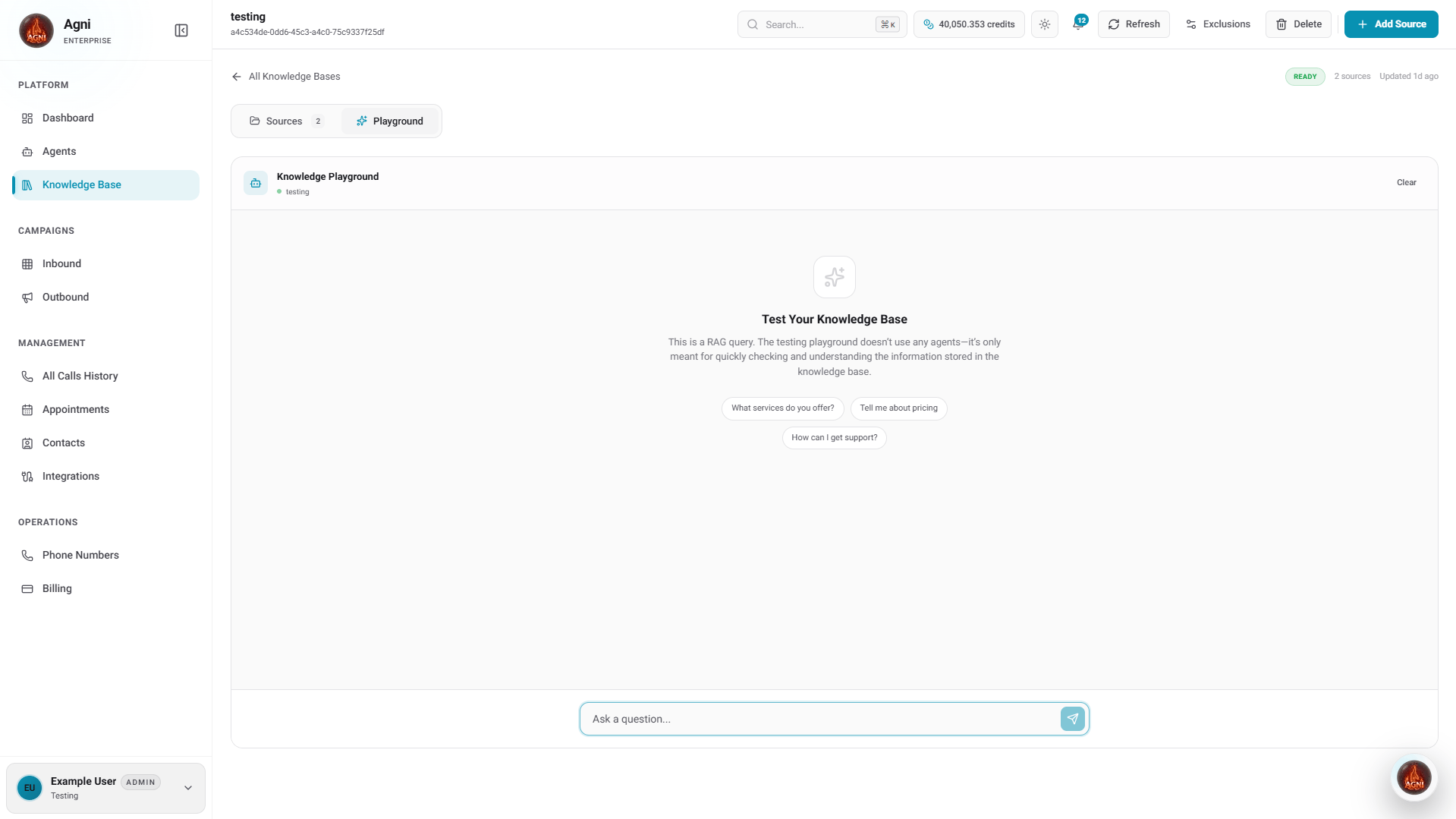 Type any question in the input field and Agni will return the most relevant information from your knowledge base. Suggested questions are shown to help you get started quickly.
The Playground performs a raw RAG query — it does not use any agent. It's only meant to verify what information your knowledge base contains.
***
## Connecting to an Agent
To use a knowledge base during calls, you need to attach it to an agent.
1. Go to **Agents** and open the agent you want to configure
2. Scroll down to the **Knowledge Base** section in the agent builder
3. Select the knowledge base you created
Type any question in the input field and Agni will return the most relevant information from your knowledge base. Suggested questions are shown to help you get started quickly.
The Playground performs a raw RAG query — it does not use any agent. It's only meant to verify what information your knowledge base contains.
***
## Connecting to an Agent
To use a knowledge base during calls, you need to attach it to an agent.
1. Go to **Agents** and open the agent you want to configure
2. Scroll down to the **Knowledge Base** section in the agent builder
3. Select the knowledge base you created
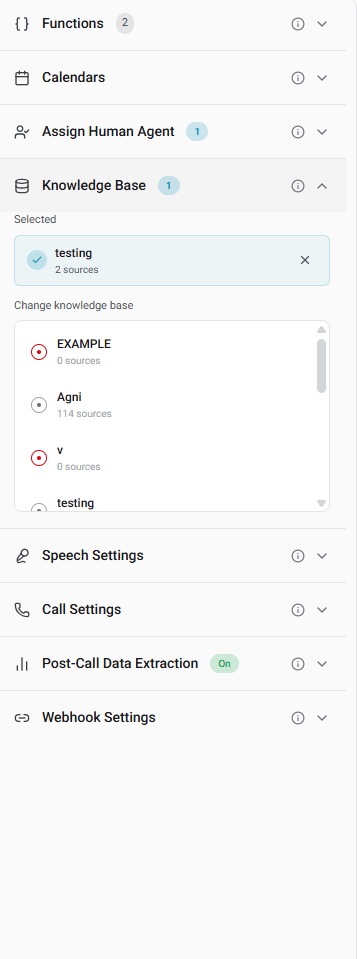 Once selected, the agent will automatically search the knowledge base during calls whenever a caller asks a relevant question.
***
## Content Best Practices
Structure content as questions and answers. This matches how callers phrase questions and improves retrieval accuracy.
Each source should cover one topic. A focused 500-word FAQ retrieves better than a 10,000-word manual.
Don't just list facts — include enough context for the agent to form natural, complete responses.
Stale information leads to wrong answers. Auto Refresh keeps URL sources current without manual re-indexing.
### Example: Good vs Bad Content
**Bad** (too terse):
```text theme={null}
Hours: 9-6 M-F
Returns: 30 days
Shipping: Free over $50
```
**Good** (natural, contextual):
```text theme={null}
Q: What are your business hours?
A: Our office is open Monday through Friday from 9:00 AM to 6:00 PM Eastern Time. We are closed on weekends and major holidays. For urgent matters outside business hours, you can leave a voicemail and we'll return your call the next business day.
Q: What is your return policy?
A: We offer a full refund within 30 days of purchase, no questions asked. After 30 days, we can offer store credit or an exchange. To initiate a return, the customer needs their order number and the email used at checkout.
```
***
## API Reference
### Add a document
```bash theme={null}
curl -X POST https://api.ravan.ai/api/v1/rag/documents \
-H "X-Api-Key: YOUR_API_KEY" \
-H "Content-Type: application/json" \
-d '{
"title": "Product FAQ",
"content": "Q: What are your business hours?\nA: We are open Monday through Friday, 9am to 6pm EST.",
"metadata": {
"category": "faq",
"last_updated": "2026-03-28"
}
}'
```
### Query the knowledge base
```bash theme={null}
curl -X POST https://api.ravan.ai/api/v1/rag/query \
-H "X-Api-Key: YOUR_API_KEY" \
-H "Content-Type: application/json" \
-d '{
"query": "What is the return policy?",
"top_k": 3
}'
```
### Crawl a URL
```bash theme={null}
curl -X POST https://api.ravan.ai/api/v1/rag/discover \
-H "X-Api-Key: YOUR_API_KEY" \
-H "Content-Type: application/json" \
-d '{
"url": "https://yourcompany.com/faq",
"depth": 2
}'
```
### Full endpoint reference
| Action | Endpoint | Description |
| ------------ | -------------------------------- | ------------------------------- |
| **Upload** | `POST /api/v1/rag/documents` | Add or update a document |
| **Get** | `GET /api/v1/rag/documents/{id}` | Retrieve a specific document |
| **List** | `GET /api/v1/rag/documents` | List all documents |
| **Query** | `POST /api/v1/rag/query` | Search the knowledge base |
| **Refresh** | `POST /api/v1/rag/refresh` | Re-index all documents |
| **Discover** | `POST /api/v1/rag/discover` | Auto-discover content from URLs |
***
## Troubleshooting
Your sources may be too broad. Split large documents into focused topics — each source should cover one subject area.
The content may not match how callers phrase their questions. Add multiple phrasings of common questions. Use the Playground to test retrieval directly.
Add more specific content — exact product names, numbers, dates, and policies. The more concrete your knowledge base, the more precise the answers.
Enable **Auto Refresh** when creating the knowledge base, or click **Refresh** manually from the knowledge base detail page to re-crawl all URL sources.
Once selected, the agent will automatically search the knowledge base during calls whenever a caller asks a relevant question.
***
## Content Best Practices
Structure content as questions and answers. This matches how callers phrase questions and improves retrieval accuracy.
Each source should cover one topic. A focused 500-word FAQ retrieves better than a 10,000-word manual.
Don't just list facts — include enough context for the agent to form natural, complete responses.
Stale information leads to wrong answers. Auto Refresh keeps URL sources current without manual re-indexing.
### Example: Good vs Bad Content
**Bad** (too terse):
```text theme={null}
Hours: 9-6 M-F
Returns: 30 days
Shipping: Free over $50
```
**Good** (natural, contextual):
```text theme={null}
Q: What are your business hours?
A: Our office is open Monday through Friday from 9:00 AM to 6:00 PM Eastern Time. We are closed on weekends and major holidays. For urgent matters outside business hours, you can leave a voicemail and we'll return your call the next business day.
Q: What is your return policy?
A: We offer a full refund within 30 days of purchase, no questions asked. After 30 days, we can offer store credit or an exchange. To initiate a return, the customer needs their order number and the email used at checkout.
```
***
## API Reference
### Add a document
```bash theme={null}
curl -X POST https://api.ravan.ai/api/v1/rag/documents \
-H "X-Api-Key: YOUR_API_KEY" \
-H "Content-Type: application/json" \
-d '{
"title": "Product FAQ",
"content": "Q: What are your business hours?\nA: We are open Monday through Friday, 9am to 6pm EST.",
"metadata": {
"category": "faq",
"last_updated": "2026-03-28"
}
}'
```
### Query the knowledge base
```bash theme={null}
curl -X POST https://api.ravan.ai/api/v1/rag/query \
-H "X-Api-Key: YOUR_API_KEY" \
-H "Content-Type: application/json" \
-d '{
"query": "What is the return policy?",
"top_k": 3
}'
```
### Crawl a URL
```bash theme={null}
curl -X POST https://api.ravan.ai/api/v1/rag/discover \
-H "X-Api-Key: YOUR_API_KEY" \
-H "Content-Type: application/json" \
-d '{
"url": "https://yourcompany.com/faq",
"depth": 2
}'
```
### Full endpoint reference
| Action | Endpoint | Description |
| ------------ | -------------------------------- | ------------------------------- |
| **Upload** | `POST /api/v1/rag/documents` | Add or update a document |
| **Get** | `GET /api/v1/rag/documents/{id}` | Retrieve a specific document |
| **List** | `GET /api/v1/rag/documents` | List all documents |
| **Query** | `POST /api/v1/rag/query` | Search the knowledge base |
| **Refresh** | `POST /api/v1/rag/refresh` | Re-index all documents |
| **Discover** | `POST /api/v1/rag/discover` | Auto-discover content from URLs |
***
## Troubleshooting
Your sources may be too broad. Split large documents into focused topics — each source should cover one subject area.
The content may not match how callers phrase their questions. Add multiple phrasings of common questions. Use the Playground to test retrieval directly.
Add more specific content — exact product names, numbers, dates, and policies. The more concrete your knowledge base, the more precise the answers.
Enable **Auto Refresh** when creating the knowledge base, or click **Refresh** manually from the knowledge base detail page to re-crawl all URL sources.