> ## Documentation Index
> Fetch the complete documentation index at: https://docs.ravan.ai/llms.txt
> Use this file to discover all available pages before exploring further.
# Phone Numbers
> Provision, manage, and configure the telephony infrastructure for your AI agents—including Twilio, managed accounts, and custom SIP providers.
The **Phone Numbers** page is your control center for telephony. Before you can buy numbers or route inbound and outbound calls, you must configure your underlying telephony provider.
Agni natively supports **Twilio** (both Bring-Your-Own-Account and Managed options) as well as **Custom Providers** via SIP trunking.
 ***
## First-Time Setup: Choose Your Strategy
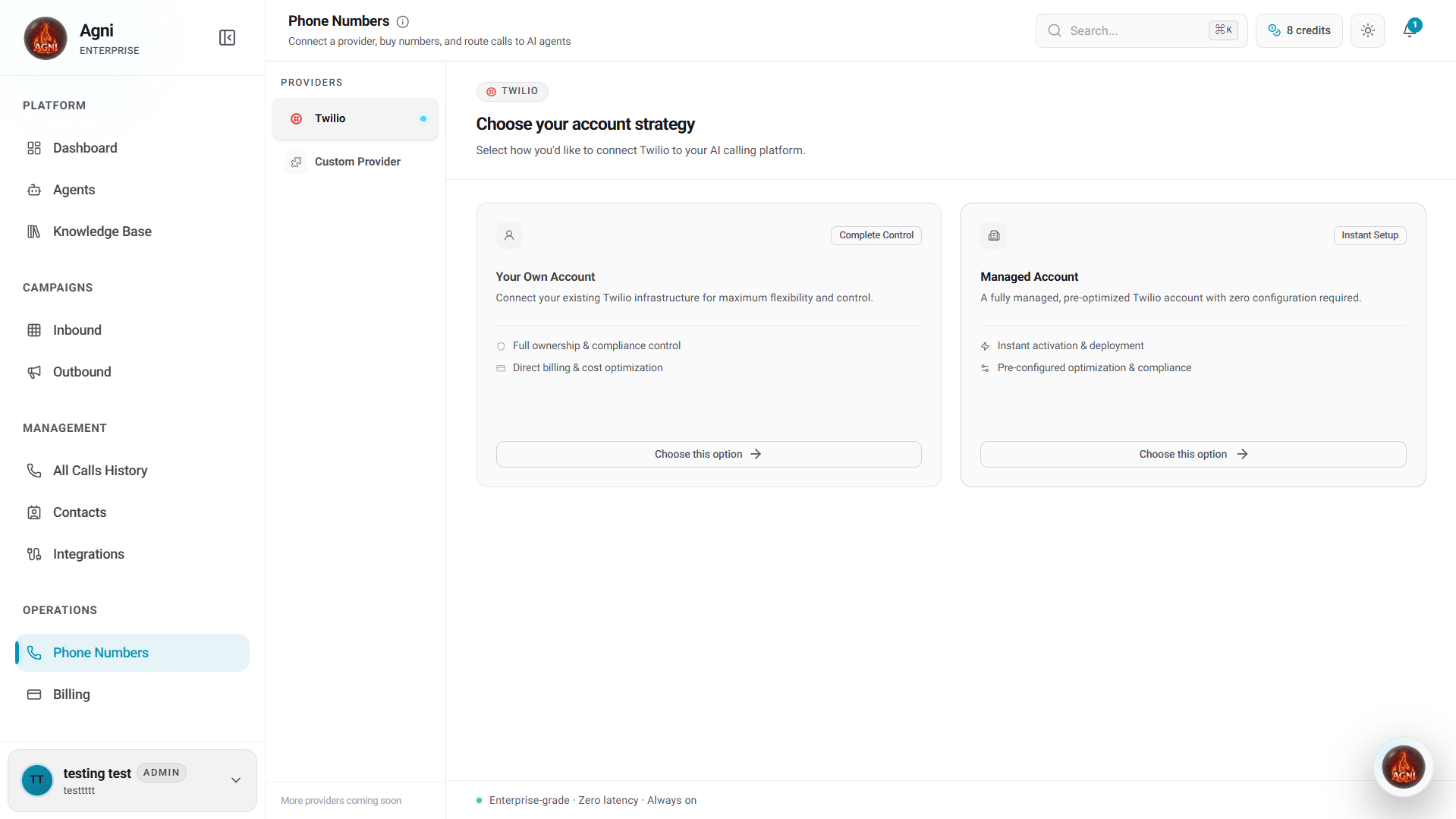
When you access the Phone Numbers tab, you must first choose how you want to connect and manage your telephony infrastructure from the left-hand **Providers** menu.
### Option 1: Custom Provider (SIP Integration)
Choose this option if you want to bring your own telephony carrier (BYOC) using SIP trunking. This allows you to route calls from any external provider directly into your Agni agents.
***
## First-Time Setup: Choose Your Strategy
When you access the Phone Numbers tab, you must first choose how you want to connect and manage your telephony infrastructure from the left-hand **Providers** menu.
### Option 1: Custom Provider (SIP Integration)
Choose this option if you want to bring your own telephony carrier (BYOC) using SIP trunking. This allows you to route calls from any external provider directly into your Agni agents.
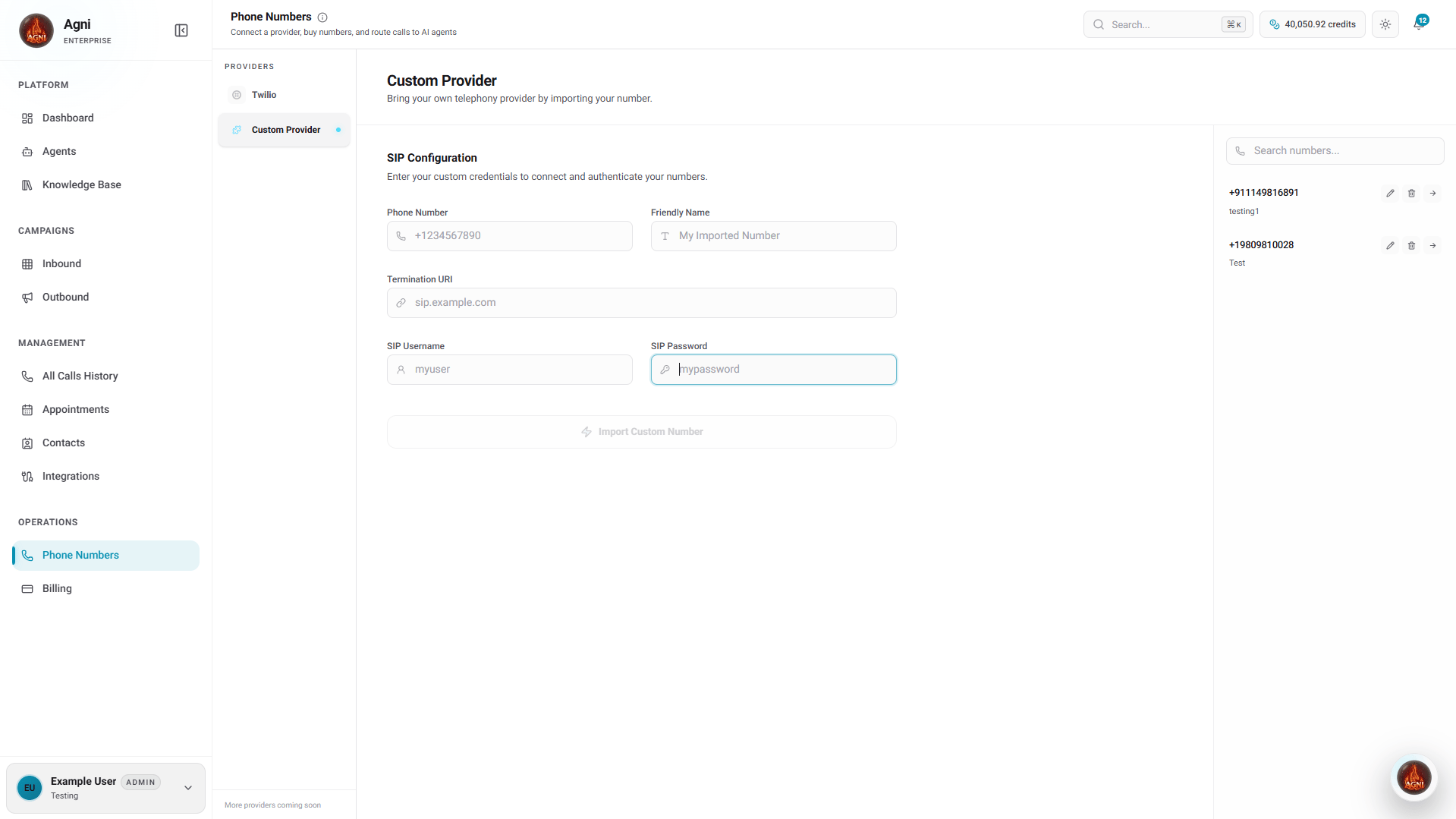 Navigate to the **Custom Provider** tab under the Providers menu.
Input the **Phone Number** you are importing (including the country code) and assign it a **Friendly Name** for easy identification within your workspace.
To successfully route inbound calls to your Agni agents, configure your external provider to point to Agni's infrastructure using our dedicated Termination URI:
`sip:68uajga988j.sip.livekit.cloud`
Input this into the **Termination URI** field.
Enter your **SIP Username** and **SIP Password** to authenticate the connection securely.
Click **Import Custom Number** to finalize the configuration. The number will immediately become available in your active inventory.
### Option 2: Twilio - Your Own Account (BYOT)
Choose this option if you already have a Twilio account and want full ownership, compliance control, and direct billing from Twilio.
Under the **Twilio** provider tab, click **Choose this option** under the "Your Own Account" card.
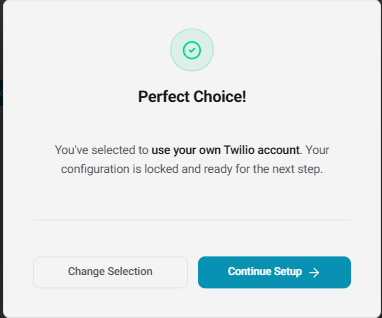
A confirmation modal will appear. Click **Continue Setup** to lock in your configuration.
Navigate to the **Custom Provider** tab under the Providers menu.
Input the **Phone Number** you are importing (including the country code) and assign it a **Friendly Name** for easy identification within your workspace.
To successfully route inbound calls to your Agni agents, configure your external provider to point to Agni's infrastructure using our dedicated Termination URI:
`sip:68uajga988j.sip.livekit.cloud`
Input this into the **Termination URI** field.
Enter your **SIP Username** and **SIP Password** to authenticate the connection securely.
Click **Import Custom Number** to finalize the configuration. The number will immediately become available in your active inventory.
### Option 2: Twilio - Your Own Account (BYOT)
Choose this option if you already have a Twilio account and want full ownership, compliance control, and direct billing from Twilio.
Under the **Twilio** provider tab, click **Choose this option** under the "Your Own Account" card.
A confirmation modal will appear. Click **Continue Setup** to lock in your configuration.
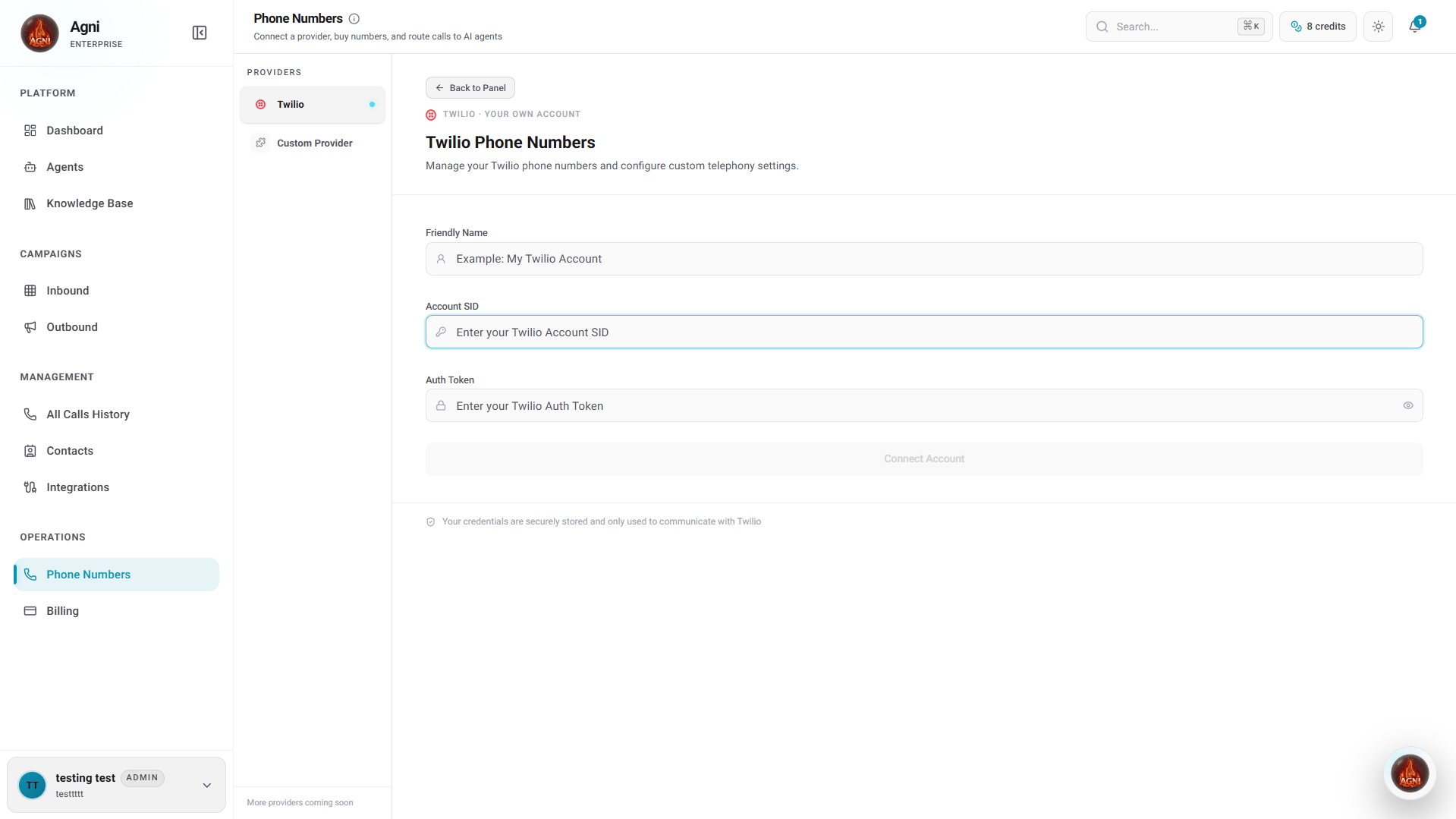
 Provide a **Friendly Name** for your integration, along with your Twilio **Account SID** and **Auth Token**. These can be found in your [Twilio Console](https://console.twilio.com). Click **Connect Account**.
 **When to choose BYOT:** If you need regulatory compliance control, already have Twilio numbers, want to keep telephony billing separate from Agni, or need access to Twilio's full feature set.
### Option 3: Twilio - Managed Account
Choose this option if you want a zero-configuration experience. Agni will manage the underlying infrastructure, and telephony usage will be deducted directly from your Agni credit balance.
Under the **Twilio** provider tab, click **Choose this option** under the "Managed Account" card.
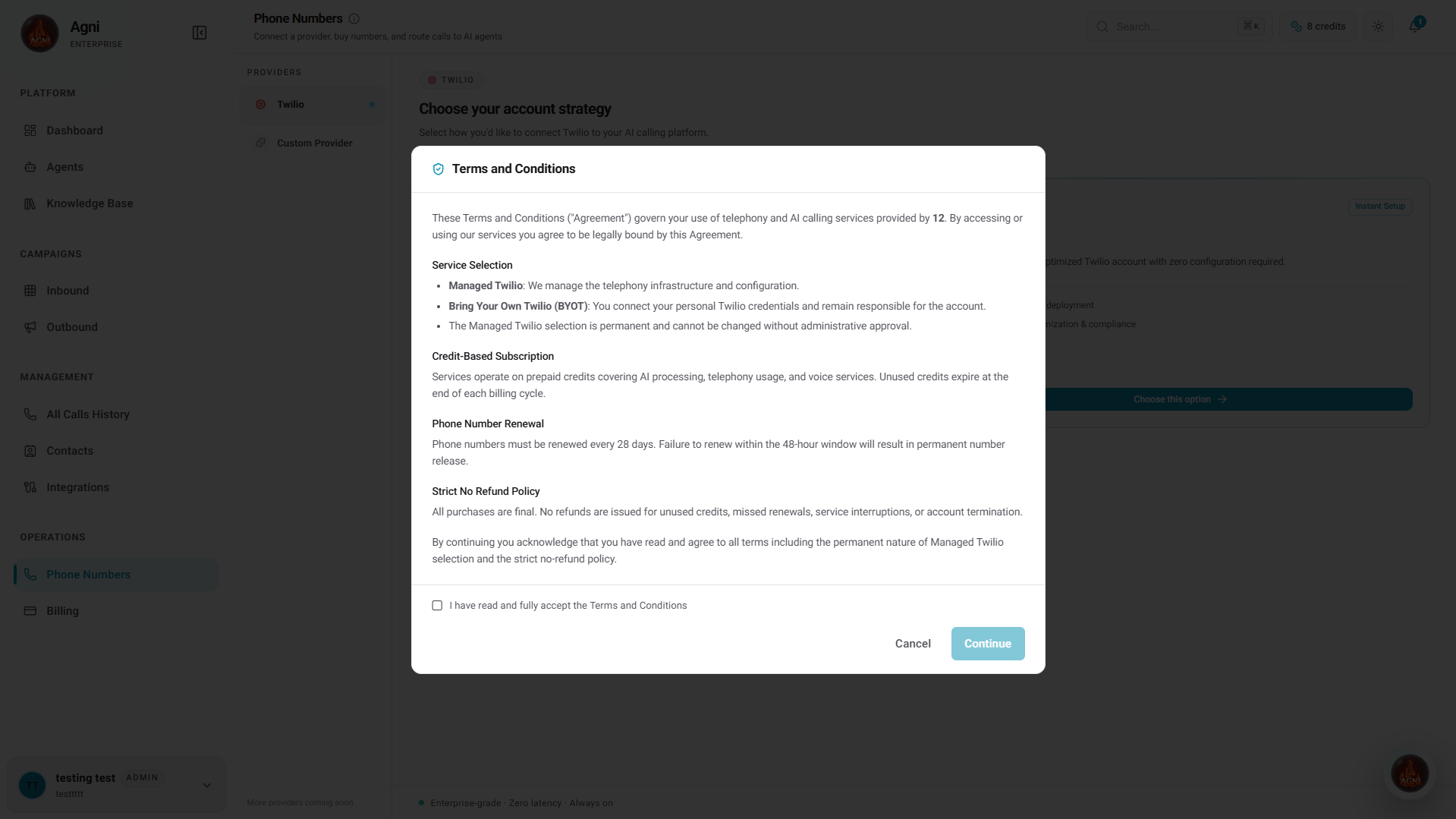
Because Agni handles the billing and compliance for Managed Accounts, you must review and accept the telephony terms.
* **Service Selection:** The Managed Twilio selection is permanent and cannot be changed without administrative approval.
* **Credit-Based Subscription:** Services operate on prepaid credits. Unused credits expire at the end of each billing cycle.
* **Phone Number Renewal:** Phone numbers must be renewed every 28 days. Failure to renew within the 48-hour window will result in permanent number release.
* **Strict No Refund Policy:** All purchases are final. No refunds are issued for unused credits, missed renewals, service interruptions, or account termination.
**When to choose BYOT:** If you need regulatory compliance control, already have Twilio numbers, want to keep telephony billing separate from Agni, or need access to Twilio's full feature set.
### Option 3: Twilio - Managed Account
Choose this option if you want a zero-configuration experience. Agni will manage the underlying infrastructure, and telephony usage will be deducted directly from your Agni credit balance.
Under the **Twilio** provider tab, click **Choose this option** under the "Managed Account" card.
Because Agni handles the billing and compliance for Managed Accounts, you must review and accept the telephony terms.
* **Service Selection:** The Managed Twilio selection is permanent and cannot be changed without administrative approval.
* **Credit-Based Subscription:** Services operate on prepaid credits. Unused credits expire at the end of each billing cycle.
* **Phone Number Renewal:** Phone numbers must be renewed every 28 days. Failure to renew within the 48-hour window will result in permanent number release.
* **Strict No Refund Policy:** All purchases are final. No refunds are issued for unused credits, missed renewals, service interruptions, or account termination.
 Give your managed connection a **Friendly Name** to identify it in your workspace, then click **Connect Account** to finalize the setup.
**When to choose Managed:** If you want the fastest setup, don't have an existing provider, and prefer consolidated billing through Agni.
### Option 4: Indian Telephony
Choose this option if you need to provision Indian (+91) phone numbers. You will need to complete a KYC compliance process before you can buy numbers.
Under the **Indian Telephony** provider tab from the left menu.
Verify your mobile number to start the process.
Complete the KYC (Know Your Customer) compliance process. This is a regulatory requirement for provisioning Indian phone numbers.
Once approved, you can purchase Indian numbers.
* **Monthly fee** — ₹295/mo.
* **Outbound rate** — ₹0.60/min.
* **Inbound rate** — ₹0.60/min.
***
## Managing Phone Numbers
Once your account strategy is configured, you will unlock the main Phone Numbers dashboard.
Give your managed connection a **Friendly Name** to identify it in your workspace, then click **Connect Account** to finalize the setup.
**When to choose Managed:** If you want the fastest setup, don't have an existing provider, and prefer consolidated billing through Agni.
### Option 4: Indian Telephony
Choose this option if you need to provision Indian (+91) phone numbers. You will need to complete a KYC compliance process before you can buy numbers.
Under the **Indian Telephony** provider tab from the left menu.
Verify your mobile number to start the process.
Complete the KYC (Know Your Customer) compliance process. This is a regulatory requirement for provisioning Indian phone numbers.
Once approved, you can purchase Indian numbers.
* **Monthly fee** — ₹295/mo.
* **Outbound rate** — ₹0.60/min.
* **Inbound rate** — ₹0.60/min.
***
## Managing Phone Numbers
Once your account strategy is configured, you will unlock the main Phone Numbers dashboard.
 ### Buy a New Number (Twilio Only)
If you are using a Twilio integration, use the left panel to search for and purchase new phone numbers directly into your workspace:
Select your desired **Country** from the dropdown menu to load available inventory.
Use the search bar to filter for specific area codes, prefixes, or vanity patterns.
Review the costs associated with the number:
* **Monthly fee** — Flat rate for owning the number (e.g., \$1.15/mo for US numbers).
* **Outbound rate** — Per-minute cost for calls your agent makes (e.g., \$0.0945/min).
* **Inbound rate** — Per-minute cost for calls your agent receives (e.g., \$0.0085/min).
Select a number and click **Buy Number** to provision it immediately to your workspace.
### Owned Numbers
The right panel displays your active inventory, including any numbers you have purchased or imported via a Custom Provider. Any number listed here is immediately ready to be used in your [Inbound Calls](/guides/inbound-calls) dispatch rules or as a Caller ID for outbound campaigns.
Phone numbers on Managed Accounts must be renewed every 28 days. Set a reminder or monitor your [Billing](/guides/billing) page to avoid accidental number loss.
***
## API Reference
Agni's Telephony API allows you to automate number provisioning and management directly from your backend.
Search the inventory for numbers available to purchase in any country.
Programmatically purchase a number and add it to your workspace.
Retrieve the active inventory of phone numbers connected to your account.
Release a phone number or remove a custom provider connection.
### Buy a New Number (Twilio Only)
If you are using a Twilio integration, use the left panel to search for and purchase new phone numbers directly into your workspace:
Select your desired **Country** from the dropdown menu to load available inventory.
Use the search bar to filter for specific area codes, prefixes, or vanity patterns.
Review the costs associated with the number:
* **Monthly fee** — Flat rate for owning the number (e.g., \$1.15/mo for US numbers).
* **Outbound rate** — Per-minute cost for calls your agent makes (e.g., \$0.0945/min).
* **Inbound rate** — Per-minute cost for calls your agent receives (e.g., \$0.0085/min).
Select a number and click **Buy Number** to provision it immediately to your workspace.
### Owned Numbers
The right panel displays your active inventory, including any numbers you have purchased or imported via a Custom Provider. Any number listed here is immediately ready to be used in your [Inbound Calls](/guides/inbound-calls) dispatch rules or as a Caller ID for outbound campaigns.
Phone numbers on Managed Accounts must be renewed every 28 days. Set a reminder or monitor your [Billing](/guides/billing) page to avoid accidental number loss.
***
## API Reference
Agni's Telephony API allows you to automate number provisioning and management directly from your backend.
Search the inventory for numbers available to purchase in any country.
Programmatically purchase a number and add it to your workspace.
Retrieve the active inventory of phone numbers connected to your account.
Release a phone number or remove a custom provider connection.