

Performance KPIs
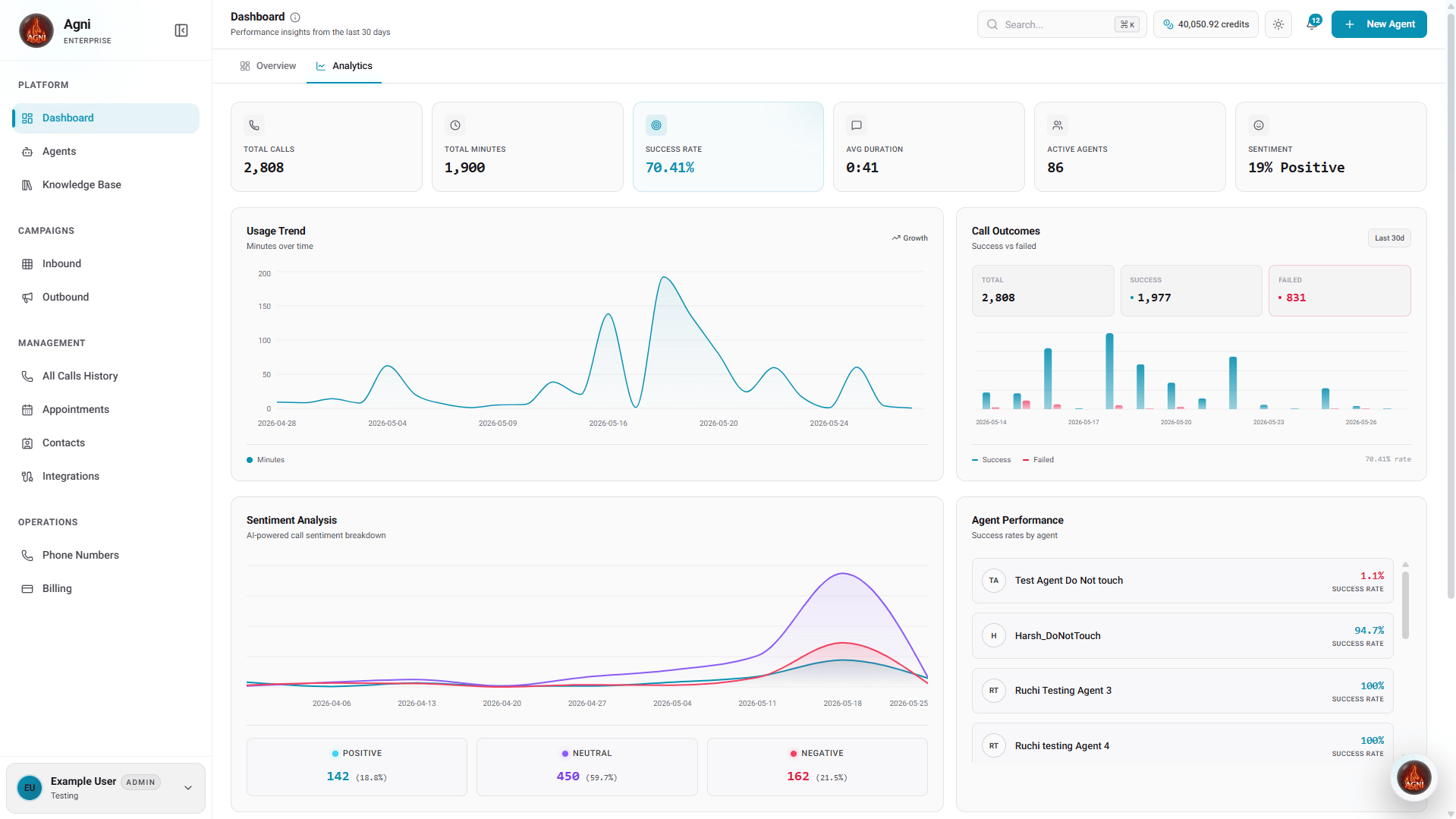
At the top of the Analytics dashboard, six high-level metrics give you an immediate snapshot of your platform’s performance based on your selected date range:Total Calls
The absolute volume of inbound and outbound calls processed. Use this to gauge overall platform utilization.
Total Minutes
The aggregate number of voice minutes consumed across all calls.
Success Rate
The percentage of calls where the agent successfully completed its objective. Low success rates may indicate prompt issues or tool misconfiguration.
Avg Duration
The average length of your conversations. Shorter isn’t always better—the right duration depends entirely on your use case.
Active Agents
The total number of unique AI agents that fielded calls during the selected period.
Sentiment
The overarching sentiment score of your callers (e.g., 26% Positive), determined by AI post-call analysis.
Visualizations & Trends
Agni provides a powerful suite of interactive charts to help you visualize data trends and optimize your agents’ performance over time.Usage Trend
A line graph tracking your Minutes over time. This chart directly correlates to your platform spend. Look for unexpected spikes or drops in consumption.
Call Outcomes
A comparative bar chart plotting Success vs Failed calls over your selected period. A rising failure rate often signals routing issues, prompt problems, or integration errors.
Sentiment Analysis
An AI-powered call sentiment breakdown showing the exact distribution of Positive, Neutral, and Negative calls, complete with a secondary graph tracking the Weekly trend of these emotions over time.
Agent Performance
A horizontal bar chart comparing the Success rates by agent. Use this to A/B test system prompts, voices, or tool configurations to identify your most effective deployments.
Call Duration
Plots your Avg duration by hour of day. This widget also highlights the Longest and Shortest calls recorded during the timeframe to help you spot outliers.
Peak Hours
Visualizes Call volume by hour of day, categorized by Business hours and Off hours. Use this to plan concurrency needs and evaluate when your customers are most active.
What to Look For
Success rate dropping
Success rate dropping
Check your agent’s system prompt and tools first. A common cause is tool descriptions that are too vague, causing the AI to trigger actions at the wrong time. Review recent call transcripts in the All Call History page.
Average duration increasing
Average duration increasing
This could mean agents are struggling to reach their objective and conversations are dragging. Or, it could mean your agents are handling more complex queries—context matters. Check the call transcripts to understand.
Negative sentiment trending up
Negative sentiment trending up
Review the All Call History detail view for recent calls with negative sentiment. Common causes: the agent interrupting the caller too aggressively, providing incorrect information, or failing to resolve the issue.
Unexpected usage spikes
Unexpected usage spikes
Check the Usage Trend chart for volume anomalies. If calls increased but were unintended, review your dispatch rules and campaign settings. Also, check the Call Duration widget for abnormally long-running calls.
Filtering and Exporting Data
In the top right corner of the dashboard, you can control the scope of your analytics:Filter by Date
Use the quick-select pills or the date picker to recalculate your dashboard metrics for a specific timeframe (e.g., Last 30d).
Export Data
Download your current analytics view to ingest this data into your CRM, billing software, or business intelligence tools for deeper analysis.
Tip: Set a weekly cadence to review your analytics. Tracking trends in the Sentiment Analysis and Usage Trend charts over time is much more valuable than looking at any single day’s numbers.